Google Slides Games for School 2026 | Best Free Templates, How to Play & Make Your Own
Introduction
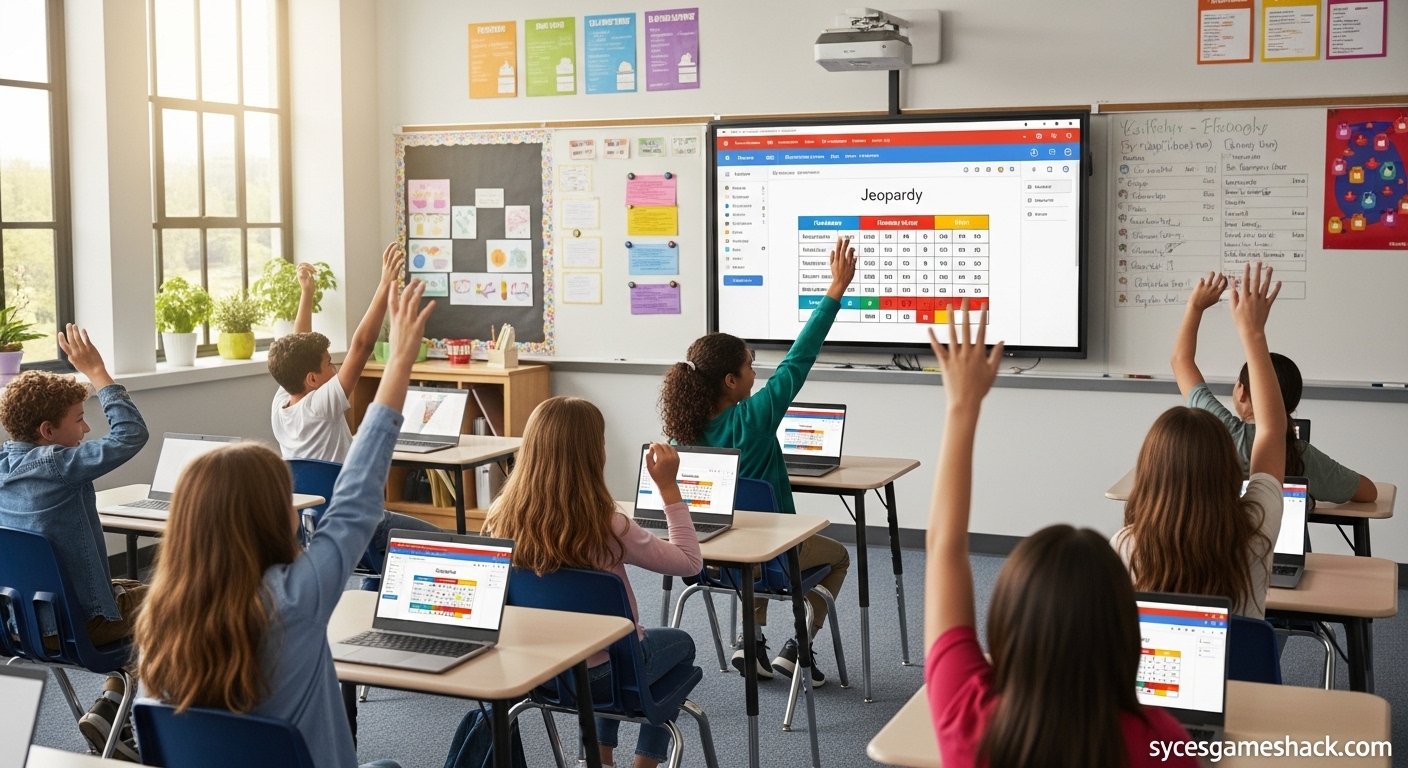
Your teacher opens Google Slides for the lesson. But instead of a boring presentation, the screen shows a fully playable Jeopardy board with your class’s topics. Students are raising hands to answer.
Points are being tracked. Everyone is engaged. This is the power of Google Slides games for school: the smartest, most creative, and most school-safe way to play games and make learning genuinely exciting in 2026.
Google Slides games work on every school Chromebook, every restricted school network, and every school device without downloads, without logins, and without triggering a single content filter.
Why? Because Google Slides runs on Google’s own servers the same servers your school uses for Google Classroom, Google Drive, and Gmail.
Schools cannot block Google Slides without breaking their entire curriculum. This makes Google Slides the most reliably unblocked gaming platform available to students in 2026.
In this complete 2026 guide, you will find every type of Google Slides game available for school, the best free templates you can copy and use immediately, a complete step-by-step guide to building your own Google Slides game from scratch, tips for teachers who want to use games in their classrooms, and answers to every question students and teachers ask about Google Slides Games for School.
What Are Google Slides Games for School?
Google Slides games for school are interactive games built entirely inside Google’s free presentation software, the same tool students and teachers use every day for class presentations and projects.
Instead of just showing slides, these specially designed files let you click, drag, answer questions, and play games directly inside the presentation.
Because Google Slides runs completely inside the Chrome browser, these games work on every school Chromebook instantly with no downloads, no plugins, and no special permissions.
What makes Google Slides games different from regular browser games is that they are completely invisible to school content filters.
When a teacher or student opens a Google Slides game, the school network sees nothing more than a standard Google Drive file being opened, the same as any legitimate class presentation or assignment.
This means Google Slides Games for School are the most consistently available, most reliably unblocked gaming experience that any student can access on any school device in 2026.
Why Google Slides Games Are the Best School Games in 2026
They Never Get Blocked
Regular unblocked game websites get added to school content filter blocklists constantly. A site that works today may be blocked tomorrow. Google Slides is different. Schools cannot block Google Slides without disabling the tools teachers depend on for every lesson.
This means a Google Slides game you find or create today will still work on your school Chromebook in one year, two years, and beyond, guaranteed.
They Look Exactly Like Schoolwork
When a student has a Google Slides game open on their Chromebook screen, it looks identical to a normal class presentation or study notes. A teacher walking past sees slides, not a gaming site.
This makes Google Slides Games for School the most discreet school gaming option available, which is exactly why they have become so popular among students in 2026.
Teachers Love Them Too
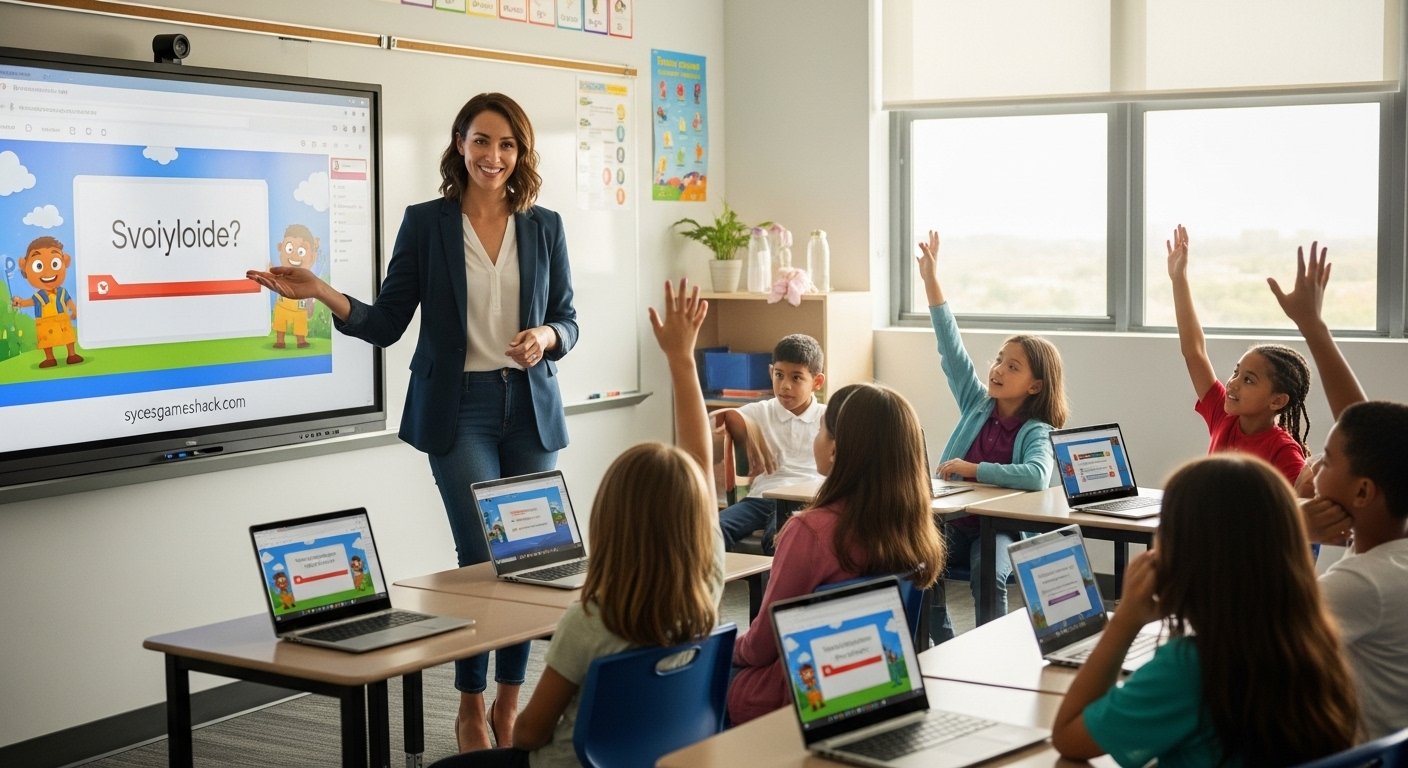
Google Slides games are not just for students sneaking games during free periods. Thousands of teachers actively use Google Slides Games for School in their classrooms as educational tools.
Jeopardy review games, escape room challenges, memory card games, and quiz competitions built in Google Slides have been proven to increase student engagement and improve learning outcomes compared to traditional lesson formats.
Completely Free No Account Needed for Students
Every student with a school Google account already has full access to Google Slides at no cost. The vast majority of Google Slides game templates available online are also free to copy and use.
Students can access hundreds of ready-made games without spending a single dollar or creating any additional accounts.
Works on Every School Device, Including the Oldest Chromebooks
Google Slides is one of the lightest web applications available. It loads quickly and runs smoothly on even the oldest and most underpowered school Chromebooks, including devices that struggle to run heavier browser games.
If your Chromebook can open Google Chrome, it can run any Google Slides game perfectly.
Best Google Slides Games for School Complete 2026 List
Jeopardy: The Most Popular Google Slides School Game
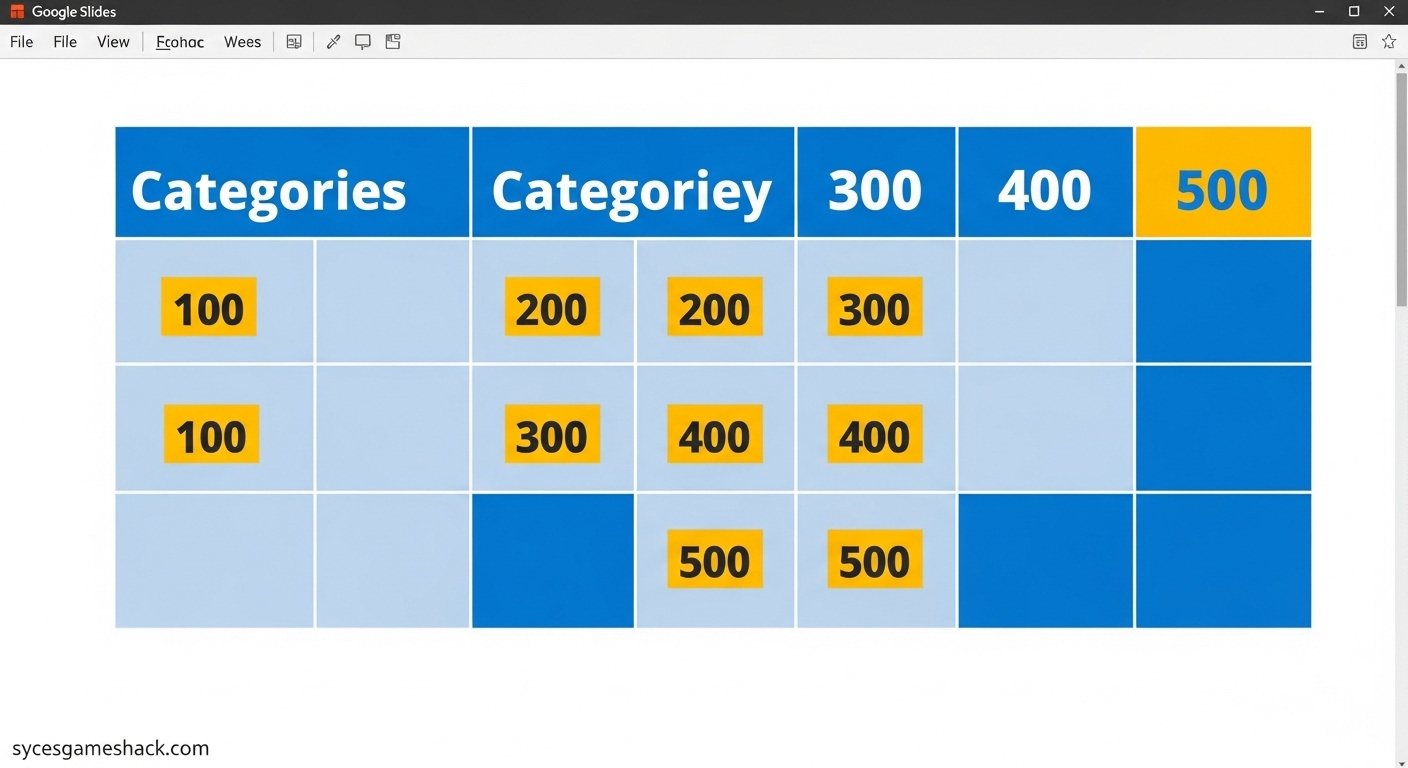
Google Slides Jeopardy is the most widely used Google Slides game in schools worldwide. The format categories across the top, point values in each cell, and questions revealed on click translates perfectly into Google Slides using hyperlinks and hidden answer slides.
Teachers use Jeopardy for end-of-unit reviews, test preparation, and vocabulary building. Students love competing for points in teams. Hundreds of free Jeopardy templates are available for every subject from math and science to history and English literature.
Google Slides Escape Room
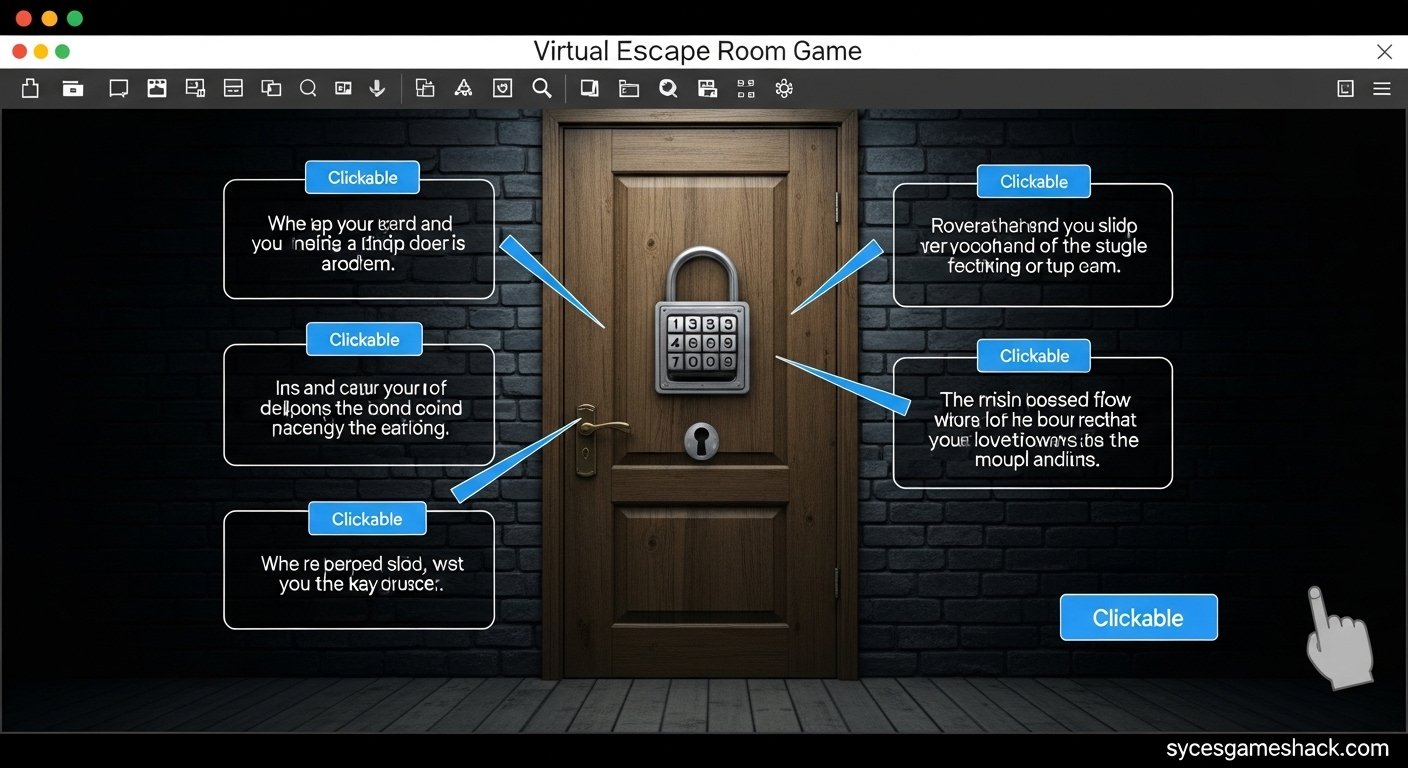
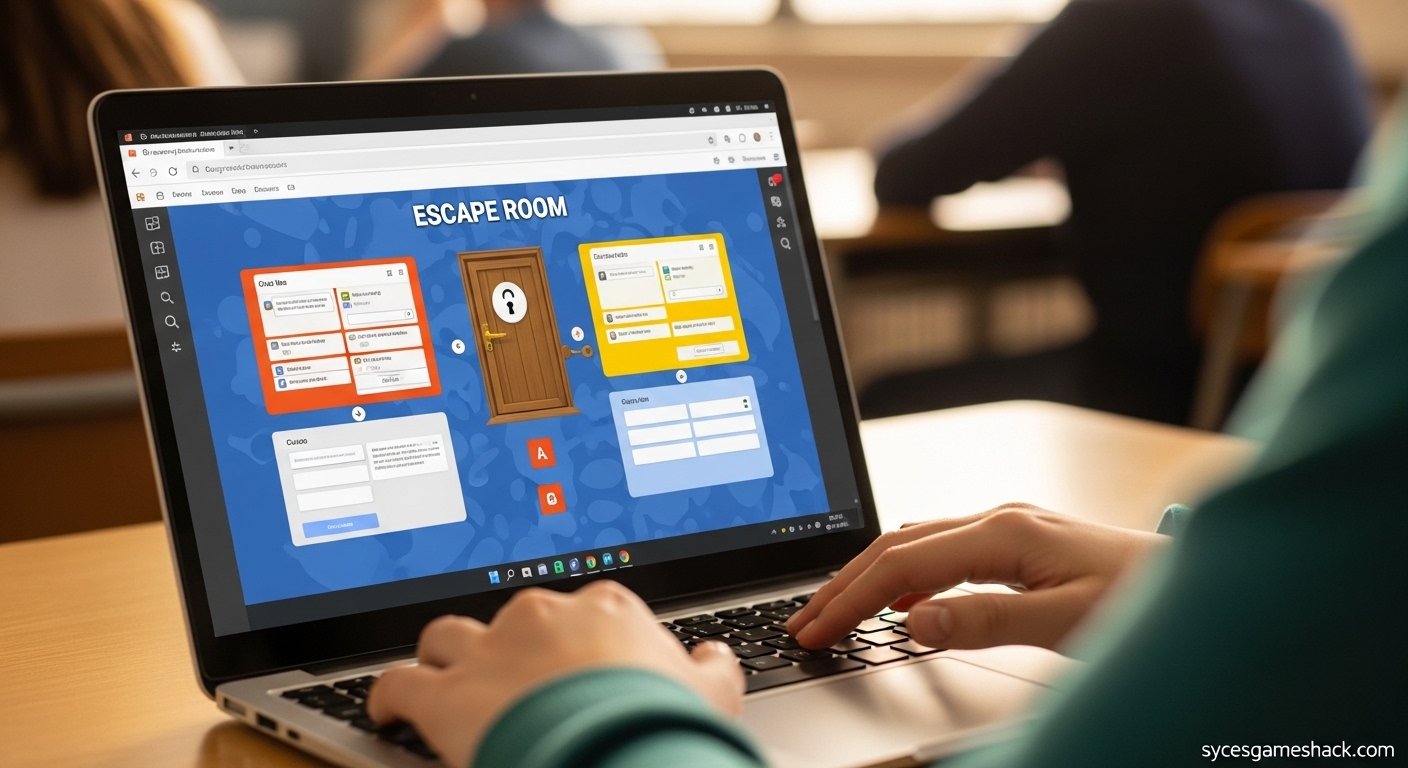
Google Slides escape rooms are the most creatively designed and most engaging type of Google Slides game available.
Students solve puzzles, find hidden clues within the slides, and use answers to unlock the next room, all using Google Slides hyperlinks and click-to-reveal mechanics.
Escape rooms work for any subject and any grade level. They are particularly effective for reviewing complex topics because solving each puzzle requires genuine understanding of the content rather than simple memorization.
Would You Rather Google Slides Edition
Would You Rather games in Google Slides present two options on each slide and let students click their choice, which then leads to a results slide showing what percentage of people chose each option (if the teacher has set it up with collected responses).
This game is perfect for quick engagement activities, icebreakers at the start of class, and discussion starters on topics with two valid perspectives.
Google Slides Trivia
Trivia games in Google Slides present questions one at a time with multiple-choice answers. Clicking the correct answer leads to a congratulations slide. Clicking a wrong answer leads to a try again slide with a link back to the question.
Trivia games are among the simplest Google Slides Games for School to build and among the most effective for reviewing factual information across any subject.
Memory Card Game
Google Slides memory card games use hyperlinks to simulate the classic flip-and-match card game entirely within a presentation. Each card on the slide links to a revealed version showing the image or text underneath.
Students try to match pairs by clicking cards and remembering what they found. Memory games are particularly effective for vocabulary learning, matching terms to definitions, and foreign language practice.
Google Slides Spin the Wheel
Spin the wheel games use animated Google Slides to simulate a spinning wheel that randomly selects topics, student names, or questions.
Teachers use spin-the-wheel games to randomly assign tasks, select students to answer questions, and make choosing game participants feel exciting and fair. Students enjoy the unpredictability and the visual animation of the spinning wheel.
Digital Scavenger Hunt
Google Slides scavenger hunts send students through a series of clues embedded across multiple slides and linked Google Drive files. Each correct answer reveals the next clue, and the first student or team to find all the clues wins.
Scavenger hunts are excellent for reviewing content that spans multiple topics or units, as each clue can cover a different area of the curriculum.
Google Slides Bingo
Google Slides Bingo gives each student a customizable bingo card filled with vocabulary words, numbers, or images.
The teacher calls out definitions or descriptions, and students mark their card by clicking the matching square. The first student to complete a row wins.
Bingo is one of the most versatile Google Slides Games for School because its card content can be fully customized to any subject or topic.
How to Find Free Google Slides Game Templates: Complete 2026 Guide
Method 1: Google Slides Template Search
Open Google Slides and click on Template Gallery.
While the official template gallery focuses on presentation templates rather than games, searching within Google Drive using keywords like “Jeopardy template,” “escape room Google Slides,” or “trivia game Google Slides” returns thousands of publicly shared game files that you can copy directly to your own Drive.
Method 2: Google Drive Search
In Google Drive, change the search filter to “Google Slides” and search for the type of game you want.
Many teachers share their game templates publicly, which means you can find high-quality, professionally designed games simply by searching. Look for files with many views or those shared by verified educational accounts for the best quality.
Method 3: Teacher Resource Websites
Websites dedicated to teaching resources host thousands of free Google Slides game templates organized by subject, grade level, and game type.
These sites are completely school-safe and accessible on any school network since they are recognized as educational resources by content filters.
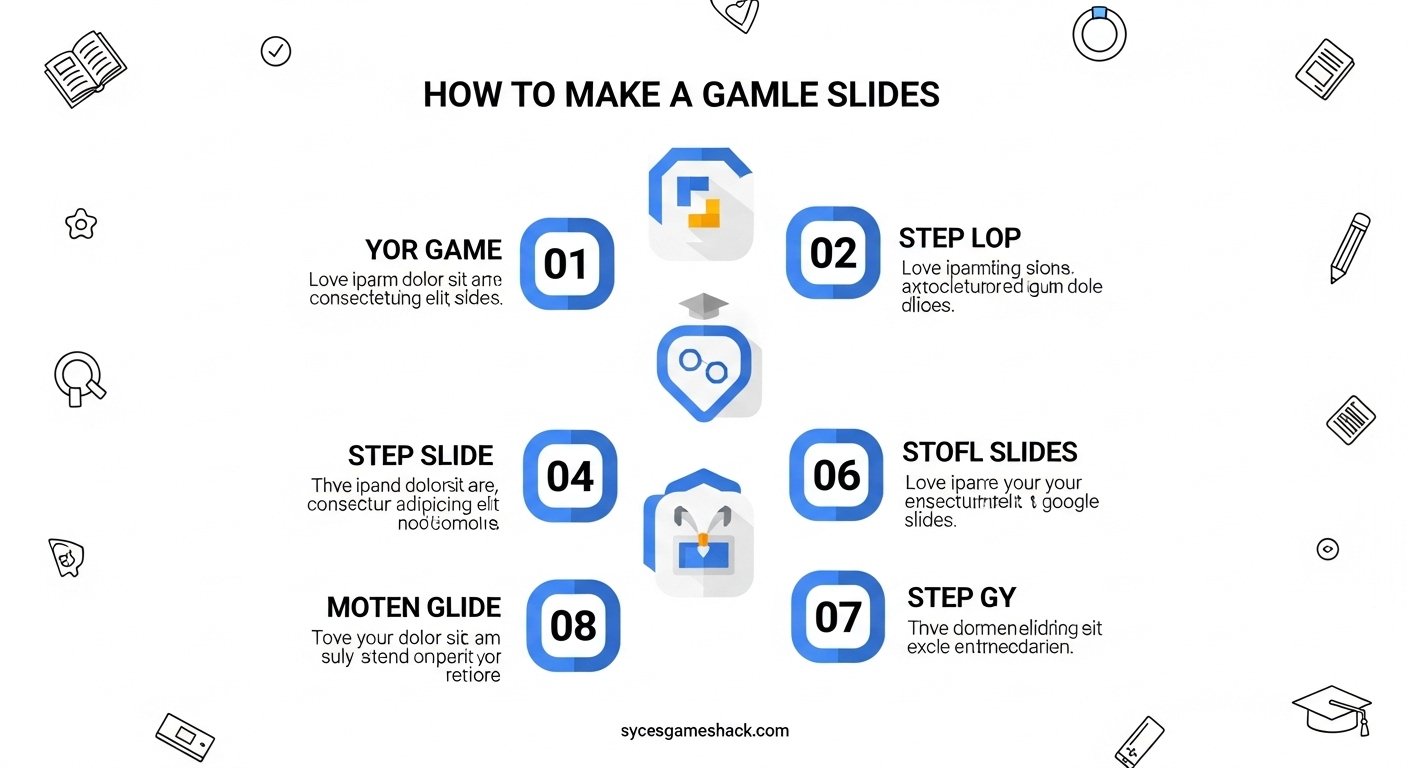
How to Make Your Own Google Slides Game: Complete Step-by-Step Guide
Creating your own Google Slides game from scratch is easier than most students and teachers think. Here is a complete beginner guide to making your first Google Slides game in 2026.
Step 1: Choose Your Game Type
Decide what kind of game you want to make before you open Google Slides. Jeopardy and trivia games are the easiest to build for beginners and take approximately 30 to 60 minutes for a complete game.
Escape rooms and memory games are more advanced and take more planning and time to set up correctly, but produce the most impressive and engaging results.
Step 2: Set Up Your Presentation
Go to slides.google.com and create a new blank presentation. Go to File and then Page Setup and change the dimensions to 16:9 widescreen at 1920 by 1080 pixels.
This gives you the most screen space to work with for game layouts and ensures your game looks professional on any display.
Step 3: Design Your Game Board
Create a visually attractive title slide with your game name. For Jeopardy, create a grid with categories across the top and point values in each cell. Use the table tool in Insert and then Table to build clean, structured game boards quickly.
Choose colours that are easy to read and visually engaging; avoid using pure white backgrounds as they are hard to look at for extended periods.
Step 4: Add Hyperlinks for Navigation
Hyperlinks are the key technology that makes Google Slides Games for School interactive. Select any text or image, press Ctrl+K or use Insert and then Link, and link to a specific slide within your presentation.
This allows clicking a question card to jump to the question slide, clicking the correct answer to jump to a correct answer slide, and clicking a back button to return to the main game board.
Practice adding hyperlinks on a test presentation before building your full game to understand how the navigation system works.
Step 5: Create Question and Answer Slides
For each question in your game, create two slides: one showing the question and one showing the answer. Link the question slide’s answer reveal button to the answer slide.
Add a return button on the answer slide that links back to your main game board. Repeat this structure for every question in your game.
Step 6: Test Your Game Thoroughly
Before presenting your game to others, play through the entire game yourself in presentation mode (press F5 or click Present) and click every link to make sure navigation works correctly.
Fix any broken links or slides that do not display correctly. A game that breaks during play is significantly less fun than one that runs smoothly from start to finish.
Step 7: Share Your Game
Share your Google Slides game by clicking the Share button and either sharing directly with specific people or generating a shareable link.
For classroom use, set sharing to “Anyone with the link can view” so students can access the game without needing individual invitations.
If you want students to interact with their own copy of the game, use File and then Make a copy instructions in the link you share.
Google Slides Games for School Every Subject 2026 Guide
Math Google Slides Games
Math Google Slides Games for School include arithmetic races where students solve equations to advance through slides, geometry shape matching games, multiplication table bingo, fraction comparison games, and algebra escape rooms where solving equations unlocks each new room.
Math games are among the most effective use cases for Google Slides because they allow instant right-or-wrong feedback through click-to-reveal answer mechanics.
Science Google Slides Games
Science Google Slides Games for School include periodic table element matching, biology vocabulary flashcards, physics formula trivia, earth science jeopardy, and laboratory safety scenario games.
Science escape rooms where students must identify correct experimental procedures to progress through rooms are particularly effective for teaching laboratory skills and safety protocols.
History and Social Studies Google Slides Games
History Google Slides Games for School include timeline ordering games, historical figure trivia, geography matching, map identification challenges, and document analysis escape rooms.
These game formats help students memorize dates, names, and sequences of events in a more engaging format than traditional flashcard or worksheet review.
English and Language Arts Google Slides Games
English Google Slides Games for School include vocabulary matching, grammar identification trivia, literary device scavenger hunts, reading comprehension escape rooms, and spelling bingo.
Foreign language teachers use Google Slides memory games and vocabulary trivia extensively for practicing new words, verb conjugations, and grammatical structures.
Is Playing Google Slides Games at School Safe?
Yes, Google Slides Games for School are completely safe to play at school. Here is a complete breakdown of why:
- Hosted on Google’s servers: All Google Slides files run on the same Google infrastructure your school uses for its official curriculum tools. There is no third-party content involved.
- No inappropriate content filters needed: Google Slides games contain only the content the creator put in them. Educational games created for school use contain nothing inappropriate.
- No personal data collected: Playing a Google Slides game does not share any personal information with third parties.
- No downloads required: Everything runs in the browser with no software installation needed.
- Teacher approved: Many teachers actively encourage and create Google Slides games as educational tools, making them one of the few gaming formats that are genuinely school-endorsed in most districts.
More Free Unblocked Games at Syces Game Shack
If you enjoy playing games at school, Syces Game Shack has over 100 free unblocked games that work on any school Chromebook:
- Slope Unblocked: High-speed ball-rolling game that tests your reflexes.
- Cookie Clicker Unblocked: The legendary idle clicking game with deep progression.
- Games Not Blocked by School 2026: Complete list of all working unblocked games.
- Deltarune Unblocked: Full RPG adventure by the creator of Undertale.
FAQs
1. What are Google Slides games for school?
Google Slides games for school are interactive games built entirely inside Google’s free presentation software. They use hyperlinks, click-to-reveal mechanics, and slide navigation to create playable game experiences that work on any school Chromebook without downloads, without logins, and without being blocked by school content filters.
2. Why are Google Slides games not blocked at school?
Google Slides runs on Google’s own servers, the same servers schools use for Google Classroom, Google Drive, and Gmail. Schools cannot block Google’s servers without disabling the tools teachers depend on for every lesson. This makes Google Slides games permanently and reliably unblocked on every school network.
3. Are Google Slides games free?
Yes. Google Slides itself is completely free for anyone with a Google account, and the vast majority of Google Slides game templates available online are also free to copy and use. Students with a school Google account already have everything they need to access and play hundreds of free Google Slides games at no cost.
4. What is the best Google Slides game for school?
Jeopardy is the most popular and most widely used Google Slides game for school in 2026. It is easy to understand, works for any subject, supports competitive team play, and hundreds of free templates are available for immediate use. Google Slides escape rooms are the most creative and engaging option for students who want a more immersive experience.
5. Can I make my own Google Slides game?
Yes. Creating a Google Slides game requires only a Google account and basic familiarity with Google Slides. The most important skill to learn is adding hyperlinks between slides, which allows you to create interactive navigation between game boards, question slides, and answer slides. A complete beginner can build a functional Jeopardy or trivia game in under one hour.
6. Do Google Slides games work on school Chromebooks?
Yes, perfectly. Google Slides is designed specifically for Chrome OS and runs flawlessly on every school Chromebook regardless of age or specifications. Because Google Slides is a core part of Google Workspace for Education, it is always available and always fully functional on school-managed Chromebook devices.
7. Can teachers see that I am playing a Google Slides game?
A Google Slides game looks identical to a normal class presentation or study document from the outside. However, teachers who use Google Classroom can see which files students have open. If a teacher opens the same file, they will see it is a game rather than schoolwork. Always use good judgment and only play games during appropriate free periods rather than during active instruction time.
8. What types of Google Slides games can I find for free?
Free Google Slides game templates available online include Jeopardy, trivia, escape rooms, memory card games, bingo, Would You Rather, spin the wheel, scavenger hunts, and many more. Templates exist for virtually every subject and grade level, from elementary math games to high school AP exam review materials.
9. How do I share a Google Slides game with my class?
Click the Share button in the top right corner of Google Slides and either share directly with specific Google accounts or generate a shareable link. Set the link permissions to “Anyone with the link can view” for the easiest access. If you want each student to have their own interactive copy, include instructions to go to File and then Make a copy before playing, which gives each student their own editable version of the game.


4 Comments