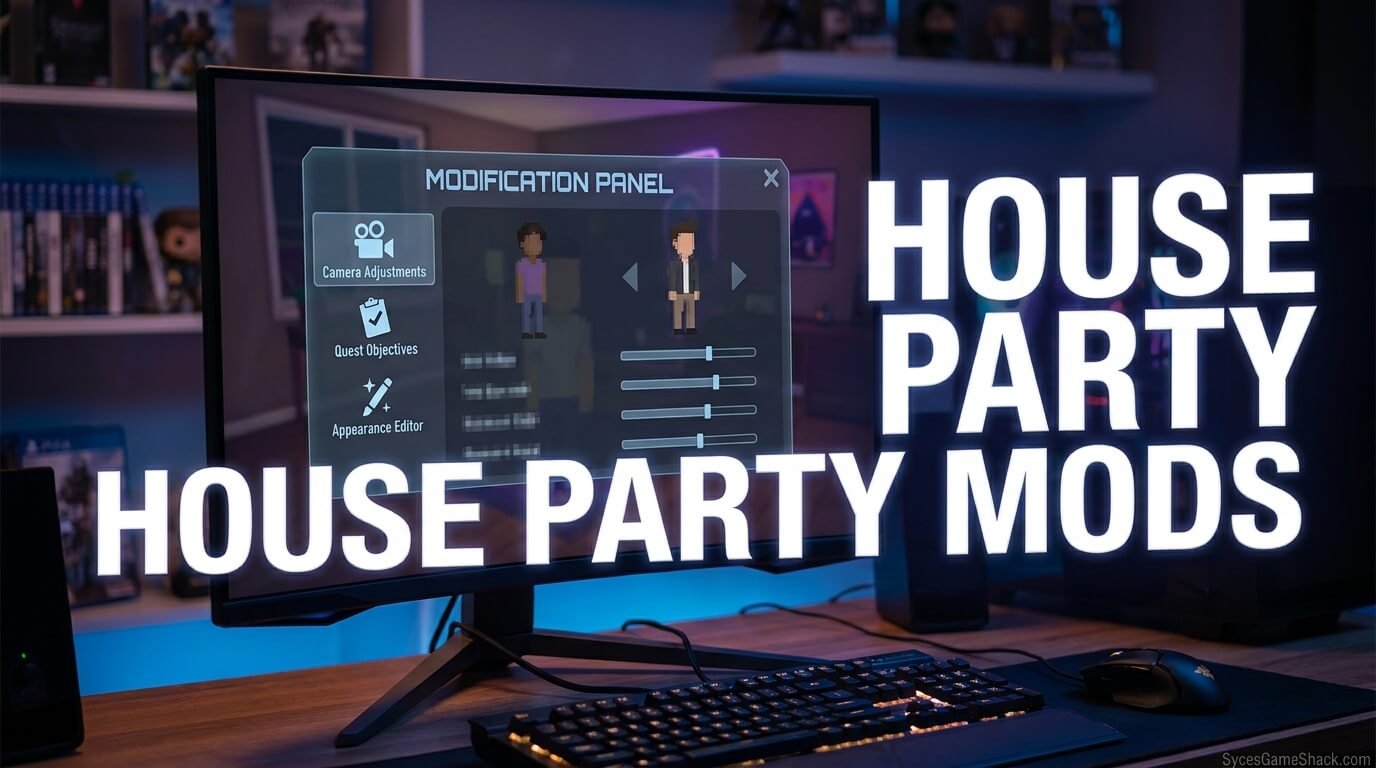
House Party Mods: Best Mods & Installation Guide
Introduction
Looking for house party mods that add useful features, improve navigation, or customize your gameplay? The PC game House Party has a community of mod creators who develop utilities, visual changes, translation tools, and other modifications for players who want to customize their experience.
This guide explains the types of modifications available, highlights a current community mod menu, and walks you through installation, compatibility checks, troubleshooting, and safer download practices. You will also find links to original mod sources so you can check the creator’s instructions before changing your game files.
Important: Community modifications are third-party files. Their availability, requirements, and compatibility can change after a game update. Always check the latest information on the original mod page before installing anything.
Table of Contents
- What Are House Party Mods?
- Best House Party Mods to Explore
- Mod Comparison Table
- How to Install House Party Mods on PC
- How to Check Compatibility
- Are These Mods Safe to Download?
- Common Problems and Fixes
- How to Update or Uninstall a Mod
- Frequently Asked Questions
What Are House Party Mods?
House Party mods are community-created modifications that change or extend certain parts of the game. Depending on the project, a modification may provide a utility menu, camera controls, visual customization, language support, or other features.
Not every modification works in the same way. Some projects use a mod loader and plugin files, while other content follows a different installation process. A custom story, for example, is not necessarily installed like a code-based plugin.
Before downloading a file, identify what it changes, which game version it supports, whether it requires additional software, and whether the creator provides installation instructions.
Best House Party Mods to Explore
1. House Party Mod Menu
The House Party Mod Menu on Nexus Mods is a community utility designed to bring multiple gameplay tools together in one interface.
Its listing describes features such as quest guidance, a live heads-up display, camera controls, an item spawner, and configurable profiles. The exact functionality depends on the installed version.
Why consider it? Players looking for several utilities in one place may find a combined menu more convenient than managing separate tools.
Version information: The listing showed version 2.10.0 on October 14, 2026, and specified House Party version 1.5.2.x with BepInEx 6 IL2CPP, build be.785 tested. These details may change, so check the current files and requirements before installation.
Official listing: View the mod menu and installation notes.
2. Camera and Navigation Utilities
Some community tools provide camera-related features or make it easier to navigate game events. The current mod menu listing includes free-camera and third-person camera features, although the available controls depend on the version.
Before choosing a separate camera utility, compare its functions with those already provided by your existing menu. Installing overlapping plugins without checking compatibility may create unnecessary conflicts.
Read the creator’s documentation carefully, especially if a camera tool requires a particular loader or game version.
3. Translation and Language Mods
Language modifications can help players understand menus, dialogue, and other text. Community translation projects may cover specific languages and can have their own version requirements.
For example, the House Party mod directory has listed an Indonesian, Malay, and Filipino translation patcher with compatibility information for certain 1.5.x versions.
Check the translation project’s supported game version and instructions before installing it. Do not assume that every language pack works with every release or expansion.
4. Texture and Visual Customization
Visual modifications can change selected textures, colors, or other graphical elements. Their scope varies: one project may modify a single asset, while another may change several visual elements.
Look at the creator’s screenshots to understand exactly what changes. Check the file size, installation method, and compatibility notes, particularly if the modification replaces existing game assets.
Keep an untouched backup of any files that the instructions tell you to replace. This makes it easier to restore the original game if the visual changes do not work as expected.
5. Custom Stories and Community Content
Custom stories and other community-created content offer a different way to explore additional material. They should not automatically be treated as interchangeable with code-based plugins or utility menus.
For official guidance and community discussion, visit the House Party modding forum. Read the instructions for the particular content you want to use rather than applying a plugin installation method to every type of modification.
House Party Mods Comparison Table
Use this table to decide which type of modification best matches your needs. Compatibility must be confirmed on the individual creator’s page.
| Modification type | Main purpose | What to check |
|---|---|---|
| Mod menu | Combines several utility features | Game version, loader, plugin requirements |
| Camera utility | Provides additional camera controls | Supported camera features and conflicts |
| Translation patch | Adds or modifies language support | Supported languages and game versions |
| Texture modification | Changes selected visual assets | File replacement instructions and backups |
| Custom story | Provides community-created story content | Required tools and content-specific instructions |
This is a comparison of modification categories, not a claim that every category has a currently maintained release. Confirm that a specific project is available before relying on it.
How to Install House Party Mods on PC
Installing House Party mods correctly begins with identifying the requirements of the specific project. The following process is a general checklist; the mod creator’s current instructions take priority whenever they differ.
Step 1: Check Your Game Version
Launch the game or inspect its installed version through your game library. Compare it with the version listed by the mod creator.
A modification designed for one release may not work with another. If the versions do not match, do not assume that the newest file will automatically work with your installation.
Step 2: Back Up Important Files
Close the game before changing files. Back up your saves and any files you plan to replace or modify. Keep the backup outside the folders that the installation instructions tell you to overwrite.
This precaution gives you a recovery option if the game crashes, a file is accidentally replaced, or a modification causes unexpected behavior.
Step 3: Install the Required Mod Loader
Some code-based modifications require a compatible loader. The current House Party Mod Menu listing specifies BepInEx 6 IL2CPP and identifies a tested build.
Visit the mod’s original listing and review its requirements. Obtain the loader from its official project source when possible, and follow the installation instructions for the correct game configuration.
Do not install several different loaders simply because they appear in unrelated tutorials. Use only the components required by your chosen modification.
Step 4: Follow the Mod’s File Instructions
After installing any required loader, read the modification’s file instructions. Some plugins use a designated plugin directory, while other modifications require a different process.
For the current Mod Menu listing, the creator documents extracting the relevant folder into the game directory where HouseParty.exe is located. The listing also provides plugin-folder instructions for the menu files. Follow the current instructions on the page rather than assuming that one folder path applies to every version.
Extract files only from a download you intended to obtain. Avoid running unknown executable files or following instructions that require disabling security protections without a trustworthy explanation.
Step 5: Launch the Game and Test
Start the game and check whether the modification loads. If the creator documents a particular hotkey, use the specified control to open its interface.
For example, the listed version 2.10.0 of the House Party Mod Menu documents F2 as its menu hotkey. This can change in a later release, so verify the current instructions.
Test the game before installing additional modifications. Adding one component at a time makes problems easier to identify.
How to Check Compatibility
Compatibility is one of the most important considerations when choosing House Party mods. A download may be genuine and still fail because the installed game, loader, or dependencies do not match its requirements.
Use this checklist before installation:
- Game version: Confirm that your installed release matches the creator’s supported version.
- Mod loader: Check the required loader and tested build, if applicable.
- Dependencies: Install only the additional components specified by the creator.
- Other plugins: Look for known conflicts with modifications already installed.
- Recent updates: Review the latest changelog and bug reports.
- Installation method: Confirm the correct folder and file structure.
When a game update breaks a modification, check whether the creator has released a compatible version. If no updated version or confirmed workaround exists, temporarily remove the modification and use the unmodified game until compatibility is established.
Are House Party Mods Safe to Download?
Third-party modifications can provide useful features, but downloading files from the internet always involves some risk. A listing, user comment, or antivirus result cannot guarantee that every file is harmless.
Use these precautions when finding and installing House Party mods:
- Prefer established mod directories and the original creator’s published page.
- Check the uploader, update history, documentation, and community reports.
- Read the installation instructions before downloading.
- Scan downloaded files with reputable security software.
- Keep backups of saves and important game files.
- Avoid repackaged installers and unrelated download mirrors when an original source is available.
- Never share account credentials or disable security software merely because an unknown download page tells you to.
Be careful with download buttons on third-party pages. Follow the link associated with the actual mod listing and verify the file name before opening it.
For community support and information about officially supported modification categories, consult the official House Party modding forum.
Common Problems and Fixes
The Mod Does Not Appear in the Game
- Check whether the required loader is installed correctly.
- Confirm that the files are in the exact folder specified by the creator.
- Make sure you did not accidentally create an extra nested folder during extraction.
- Check the game’s version and the mod’s requirements.
- Review any installation logs or error messages supplied by the loader.
The Game Crashes After Installation
- Close the game and temporarily remove the newly installed modification.
- Restore any original files you backed up before installation.
- Check whether the creator reports a known conflict or version incompatibility.
- Test the game without additional plugins to narrow down the cause.
- Follow the creator’s documented recovery instructions.
The Mod Menu Hotkey Does Not Work
Confirm that the correct menu version is installed and that its files are in the required location. Check whether the loader started successfully and whether the hotkey has changed in a newer release. Do not assume that the menu is installed correctly simply because the game launches.
A Required Dependency Is Missing
Read the error message and compare it with the mod’s requirements. Install the specific dependency from its original project source, ensuring that its version is compatible. Avoid downloading random replacement files from unrelated websites.
How to Update or Uninstall a Mod
Before updating a modification, check the changelog and determine whether the new release supports your installed game version. Back up important files before replacing the existing version.
For removal, close the game and follow the creator’s uninstall instructions. Remove only the files associated with the modification, and avoid deleting shared loader components if other plugins depend on them.
If you are unsure which files belong to a modification, consult its documentation before deleting anything. Restoring your backup or using the game platform’s file-verification feature may help recover an installation, although platform verification does not necessarily remove every third-party file.
Conclusion
The right House Party modification depends on what you want to change, which game version you use, and how comfortable you are with installing additional files. A utility menu may be useful for gameplay tools, while translation projects, visual changes, and custom stories serve different purposes.
Start with a clearly documented project, verify its requirements, back up your files, and follow the original creator’s instructions. If something stops working, remove the newest change and troubleshoot before adding more components.
For more gaming guides, tutorials, and practical tips, keep exploring SycesGameShack.com.
Frequently Asked Questions
1. Where can I find House Party mods?
You can explore the House Party mod directory on Nexus Mods and consult the official game’s modding forum. Always verify the individual creator’s instructions and compatibility information.
2. What is the House Party Mod Menu?
It is a community utility that combines several tools, including quest guidance and camera features. Its exact features and requirements depend on the version installed.
3. Do all modifications require BepInEx?
No. Requirements vary by project. The current Mod Menu listing specifies BepInEx 6 IL2CPP, but you should not assume that every texture change, translation patch, or custom story uses the same loader.
4. Why are my modifications not working?
Common causes include an incompatible game version, missing dependencies, incorrect folder placement, loader errors, or conflicts between plugins. Check the creator’s requirements and troubleshoot one modification at a time.
5. Can I use several modifications together?
Possibly, but compatibility depends on the individual projects. Check their documentation for conflicts, install one modification at a time, and test the game before adding another.
6. Are community downloads guaranteed to be safe?
No download can be guaranteed safe simply because it appears on a mod directory. Use reputable sources, check the uploader and file history, scan downloads, and avoid running files you cannot verify.
7. How do I update a modification after a game update?
Check the original mod page for a compatible release and read its changelog. If the creator has not confirmed compatibility, back up your files and consider temporarily removing the modification.
8. Where can I find official modding guidance?
Visit the House Party official modding forum for community discussion and relevant guidance from the game developer’s forum.



One Comment