PUBG Mobile Best Settings for Low-End Device 2026 Max FPS & Zero Lag Guide
Introduction
Playing PUBG Mobile on a budget phone does not mean you have to accept lag, stuttering, and frame drops. With the right settings, even a 2GB or 3GB RAM device can run PUBG Mobile Best Settings for Low-End Device smoothly enough to compete effectively and win matches.
This complete guide covers every setting you need to adjust in 2026 graphics, frame rate, sensitivity, controls, and phone-level optimizations to get the maximum possible performance from any low-end Android device.
Why Low-End Devices Struggle in PUBG Mobile
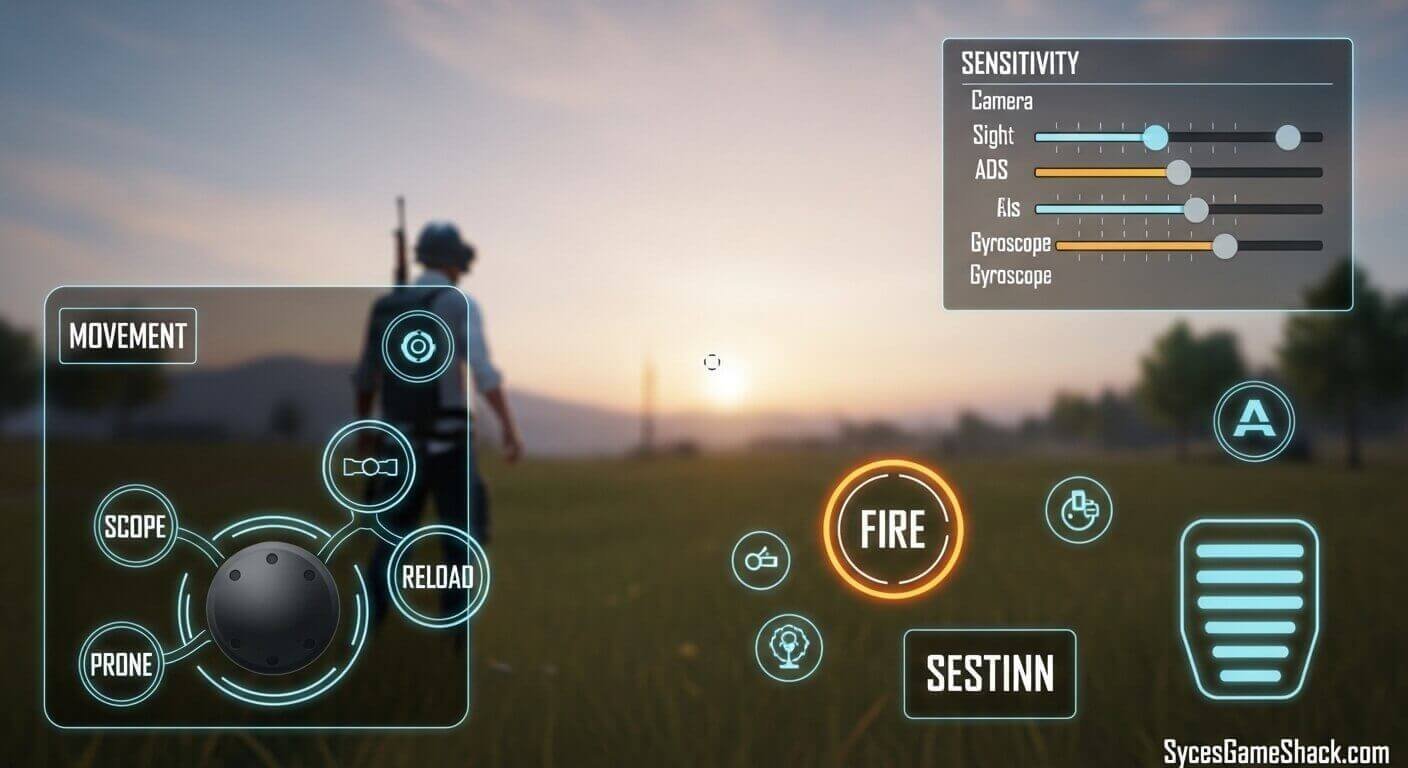
Before jumping into settings, understanding why budget phones lag in PUBG Mobile Best Settings for Low-End Device helps you make smarter optimization choices.
- Thermal Throttling is the biggest hidden performance killer. When your phone gets hot during extended gameplay, the CPU and GPU automatically slow down to prevent damage. A device running at 60 FPS can drop to 25 FPS mid-match simply from overheating, the worst possible moment to lose frames.
- Insufficient RAM causes stuttering and crashes. PUBG Mobile requires 4GB of free storage just for installation, and the game itself can consume 1.5GB to 2GB of RAM during active gameplay. When your device hits its memory limit, Android starts force-closing background processes, causing visible stuttering.
- A weak GPU limits the graphics your device can render per second. Low-end chipsets like the Snapdragon 400-600 series and MediaTek Helio A-series were not designed for the rendering demands of modern battle royale games at high settings.
Step 1: Prepare Your Device Before Changing Settings
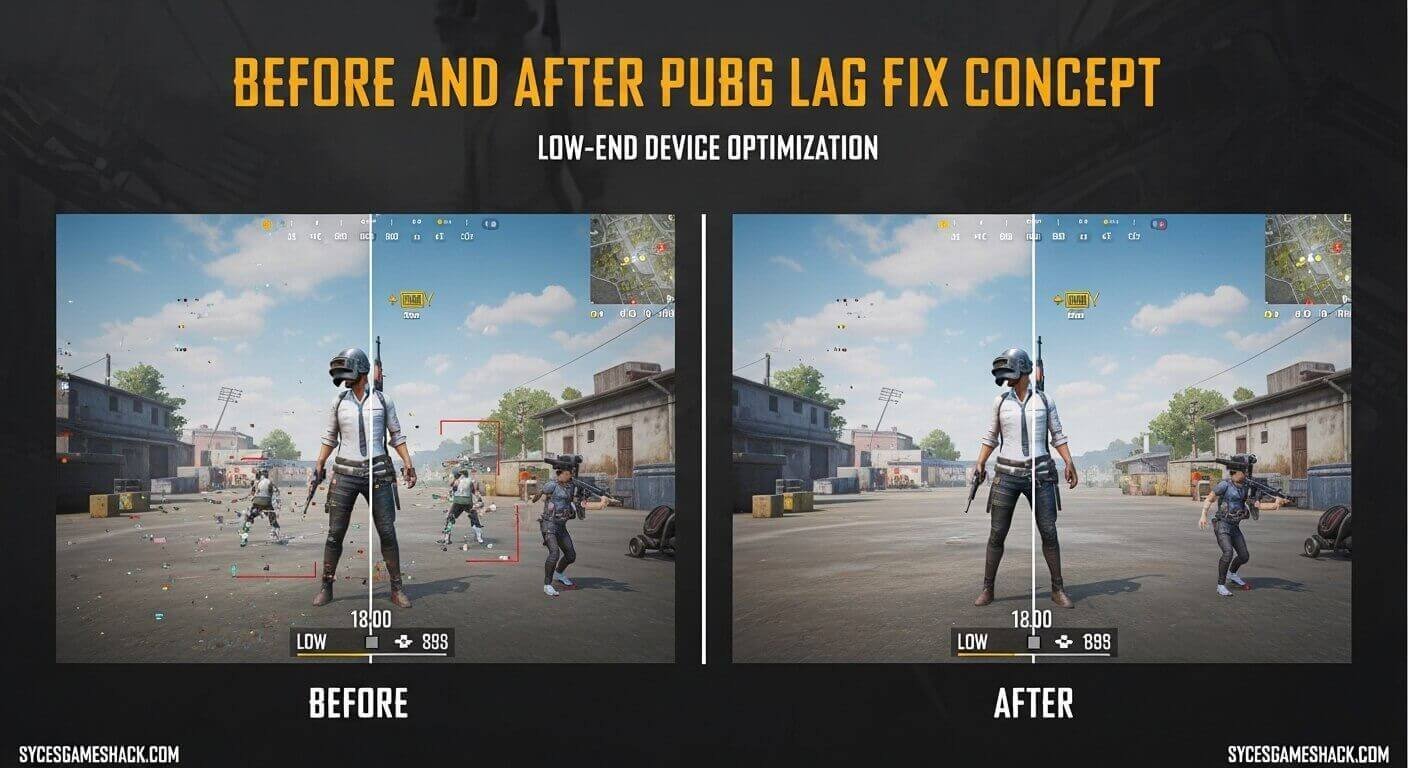
These phone-level preparations improve performance before you even touch the in-game settings.
- Disable Power-Saving Mode. Battery saver throttles your CPU to extend battery life. This is catastrophic for gaming performance. Turn it off completely before every session through your Quick Settings panel.
- Clear Background Apps. Close every app running in the background before launching PUBG Mobile. WhatsApp, YouTube, Chrome, and even system apps all consume RAM that your game needs.
- Enable Game Mode or Performance Mode. Most Android phones in 2026 include a dedicated gaming mode. Samsung calls it Game Booster, Xiaomi calls it Game Turbo, and Realme calls it Game Space. Enable this before launching PUBG Mobile; it prioritizes CPU and GPU resources for the game, blocks notifications, and manages heat more efficiently.
- Free Up Storage. PUBG Mobile needs at least 4GB of free storage to run without data corruption issues. Use your phone’s built-in cleaner to delete junk files and empty the cache. Delete unused apps and move photos to cloud storage if needed.
- Use the Repair Function. On the PUBG Mobile login screen, tap the wrench icon to access the Repair function. Run this periodically to clear corrupted game data that accumulates over multiple updates and causes random crashes.
Step 2: Best In-Game Graphics Settings for Low-End Devices
These are the exact settings to apply in PUBG Mobile’s Settings → Graphics menu for maximum performance on budget phones.
Graphics Quality Set to SMOOTH
This is the single most impactful setting for low-end devices. Smooth reduces polygon counts, texture resolution, and post-processing effects significantly.
On a 2GB RAM device, switching from Balanced to Smooth alone can improve FPS by 15 to 30 frames. Never use Balanced, HD, or Ultra HD on a low-end device.
Frame Rate Set to EXTREME or HIGH

Counter-intuitively, setting Frame Rate to Extreme (60 FPS) is better than setting it to High (40 FPS) on most devices, because the game engine prioritizes resources differently.
However, if your phone cannot sustain 60 FPS consistently and drops frequently, set Frame Rate to High for more stability. Test both options over full matches to see which produces smoother gameplay on your specific device.
Anti-Aliasing DISABLE
Anti-aliasing smooths jagged edges on objects but consumes significant GPU resources. On a small mobile screen, the visual difference is barely noticeable during actual gameplay. Disabling this provides meaningful performance gains with essentially zero gameplay disadvantage.
Shadows DISABLE or VERY LOW
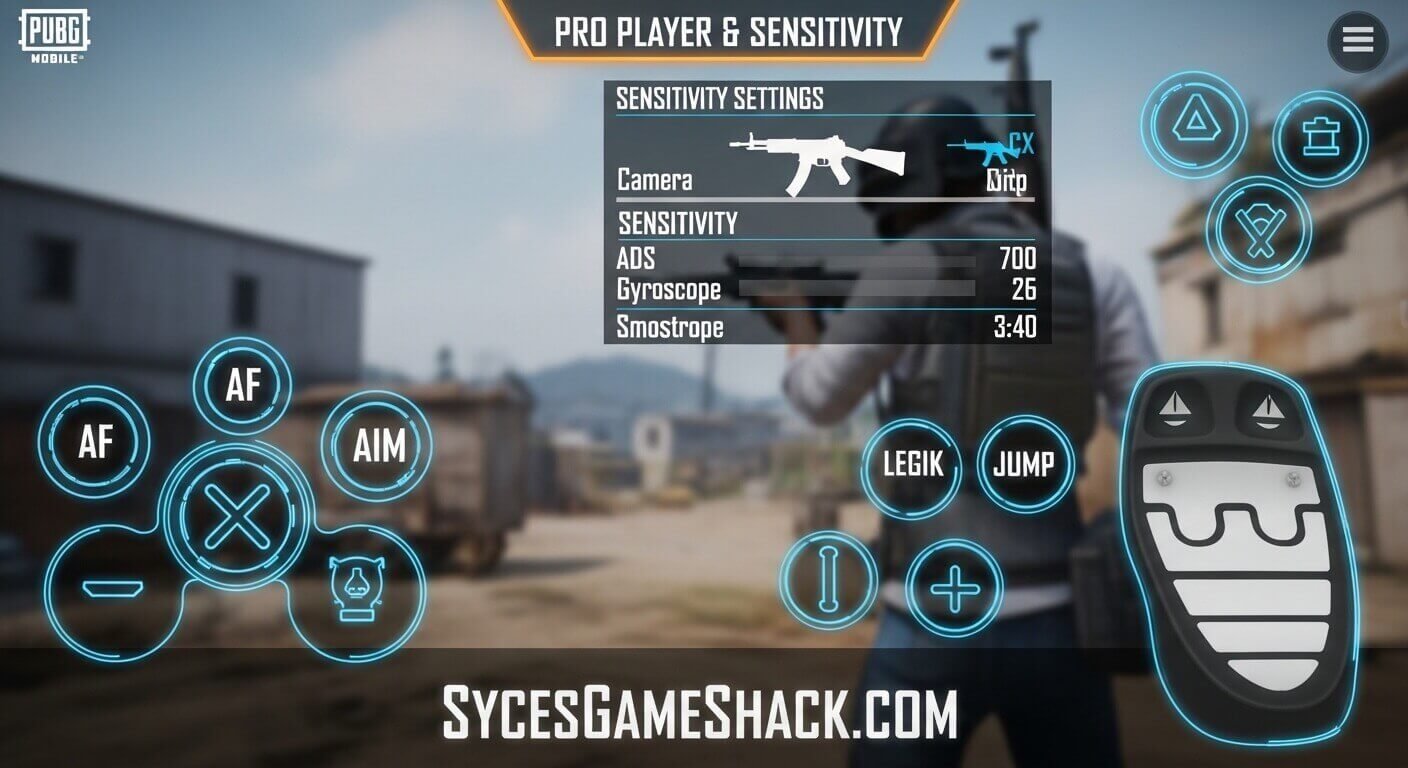
Shadows consume substantial processing power and actually hurt your competitive performance by creating dark spots that conceal enemies. Disabling shadows both improves your FPS and makes enemies more visible — it is a pure competitive advantage on low-end devices.
Bloom Effects DISABLE
Bloom creates glowing light effects around bright objects. Disabling this reduces GPU load without any gameplay impact whatsoever.
SFX Quality Set to LOW
Sound effects quality affects audio rendering load. Setting this to Low reduces CPU usage during intense multi-player situations when gunfire, explosions, and footsteps create high audio processing demand.
Auto-Adjust Graphics DISABLE
This feature sounds helpful, but it causes inconsistent visual quality and stuttering by dynamically changing settings mid-match. Always disable this and maintain manual control over your graphics settings.
Complete Settings Table by Device Type

| Setting | 2GB RAM Device | 3-4GB RAM Device | 4GB+ RAM Device |
|---|---|---|---|
| Graphics Quality | Smooth | Smooth | Smooth or Balanced |
| Frame Rate | High (40 FPS) | Extreme (60 FPS) | Extreme (60 FPS) |
| Anti-Aliasing | Off | Off | Off |
| Shadows | Off | Very Low | Low |
| SFX Quality | Low | Low | Medium |
| Bloom | Off | Off | Off |
| Auto-Adjust | Off | Off | Off |
Step 3: Best Sensitivity Settings for Low-End Devices
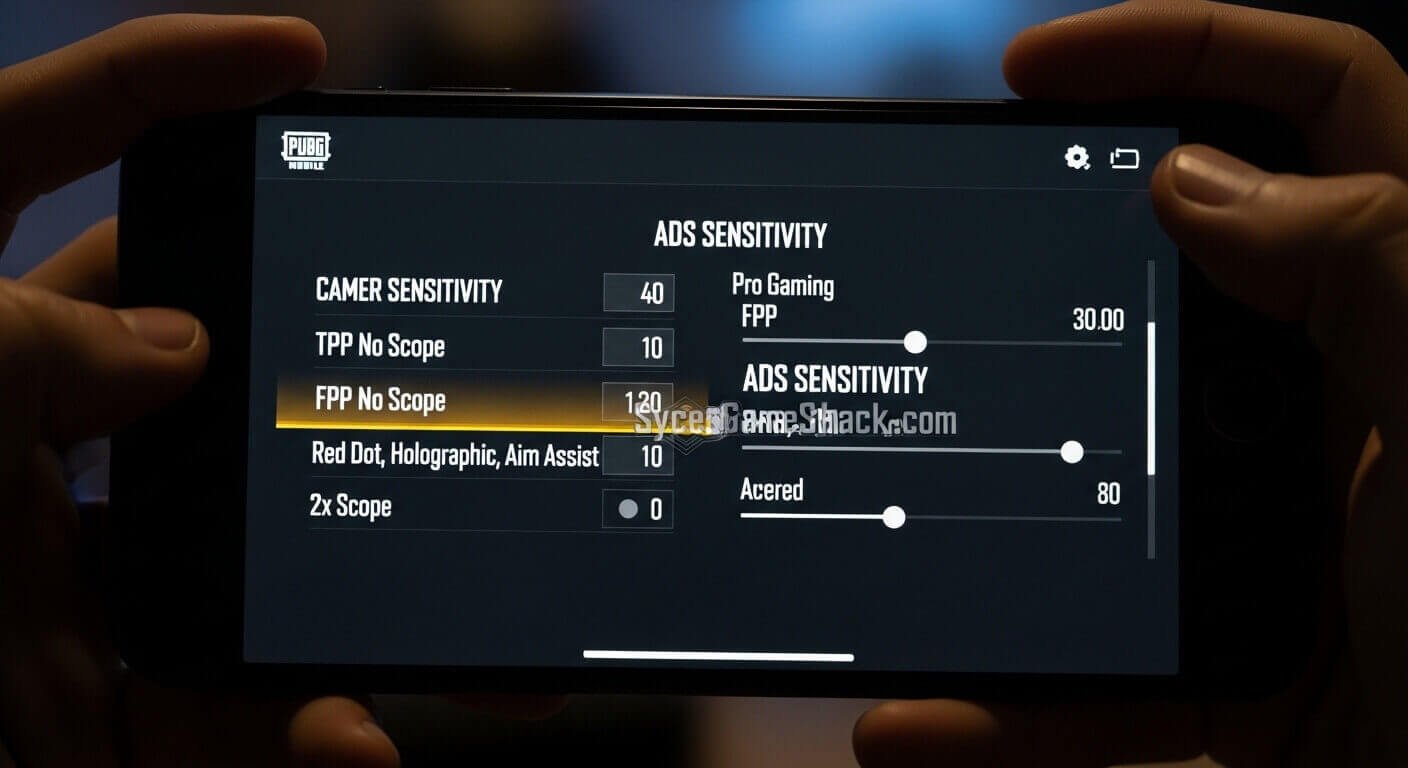
Sensitivity settings on low-end devices require lower values than high-end phones because frame drops affect how sensitivity feels. When your FPS drops from 60 to 30, sensitivity effectively becomes harder to control because the game renders fewer frames between inputs.
Recommended Starting Sensitivity for Low-End Devices

| Sensitivity Type | 2GB RAM | 3-4GB RAM |
|---|---|---|
| Camera (Free Look) | 100-110 | 120-130 |
| Camera (3rd Person No Scope) | 100-110 | 110-120 |
| Camera (1st Person No Scope) | 100-110 | 110-120 |
| Red Dot / Holographic | 45-55 | 55-65 |
| 2x Scope | 35-45 | 45-55 |
| 3x Scope | 30-40 | 35-45 |
| 4x Scope / VSS | 25-30 | 30-35 |
| 6x Scope | 15-20 | 20-25 |
| 8x Scope | 10-15 | 15-20 |
Apply these values as a starting point. Play 10 to 15 matches with the new settings before making adjustments. Most players adjust within three to five gaming sessions.
Step 4: Developer Options Tweaks
These advanced Android settings require enabling Developer Options on your phone (Settings → About Phone → tap Build Number seven times).
- Background Process Limit: Navigate to Developer Options → Background Process Limit and set it to “At most 3-4 processes.” This prevents unnecessary background apps from consuming the RAM your game needs.
- Force 4x MSAA DISABLE: If Force 4x MSAA is enabled in Developer Options, disable it immediately. This setting forces multi-sample anti-aliasing on all apps, significantly increasing GPU load without any benefit in PUBG Mobile.
- Disable HW Overlays: In some devices, disabling hardware overlays through Developer Options reduces display rendering overhead and slightly improves gaming performance.
Step 5: Control Layout Optimization
A clean, minimal control layout reduces input delay on low-end devices where the touchscreen processor handles button inputs alongside game rendering.
Avoid placing too many buttons on the screen simultaneously. Stick to essential controls only: movement joystick, fire buttons, scope button, crouch, jump, and item pickup. Remove any decorative or rarely used buttons from your layout.
Place buttons on the edges and corners of your screen rather than the center. This leaves your viewing area clear and reduces accidental inputs during intense fights.

Chipset-Specific Recommendations
Snapdragon 400-600 Series (Budget)
Use Smooth + High (40 FPS) for a stable frame rate. Monitor temperature closely; these chips throttle aggressively when hot. Play in a cool environment and consider a small USB fan if you game for extended sessions.
MediaTek Helio A-Series and G-Series (Budget-Mid)
Use Smooth + High (40 FPS). Helio A-series chips have limited GPU headroom. Helio G-series (G80, G85, G96) can usually handle Smooth + Extreme reliably.
Snapdragon 660-680 and MediaTek Helio G-Series (Mid-Range)
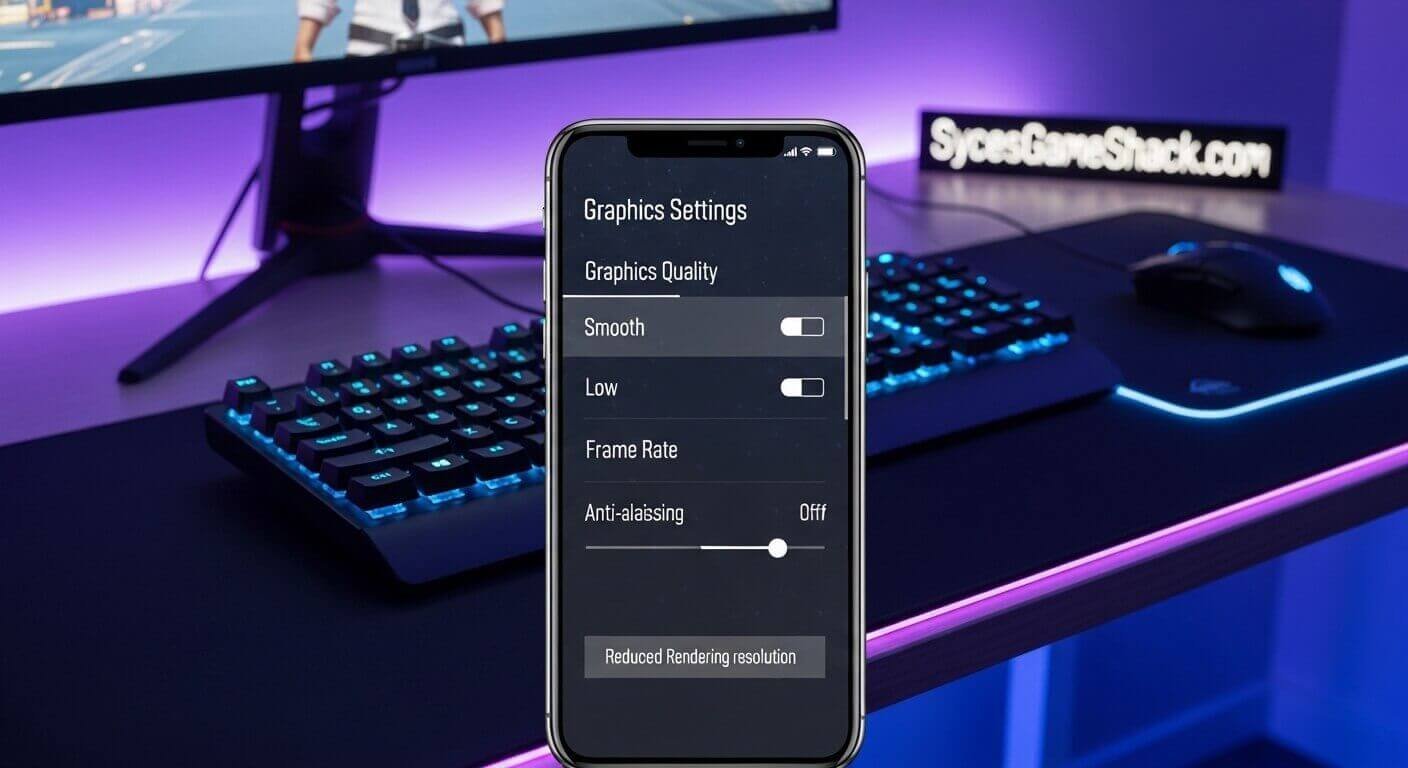
Use Smooth + Extreme (60 FPS). These processors handle PUBG Mobile at a consistent 60 FPS with all recommended settings applied.
Should You Play PUBG Mobile or PUBG Mobile Lite?
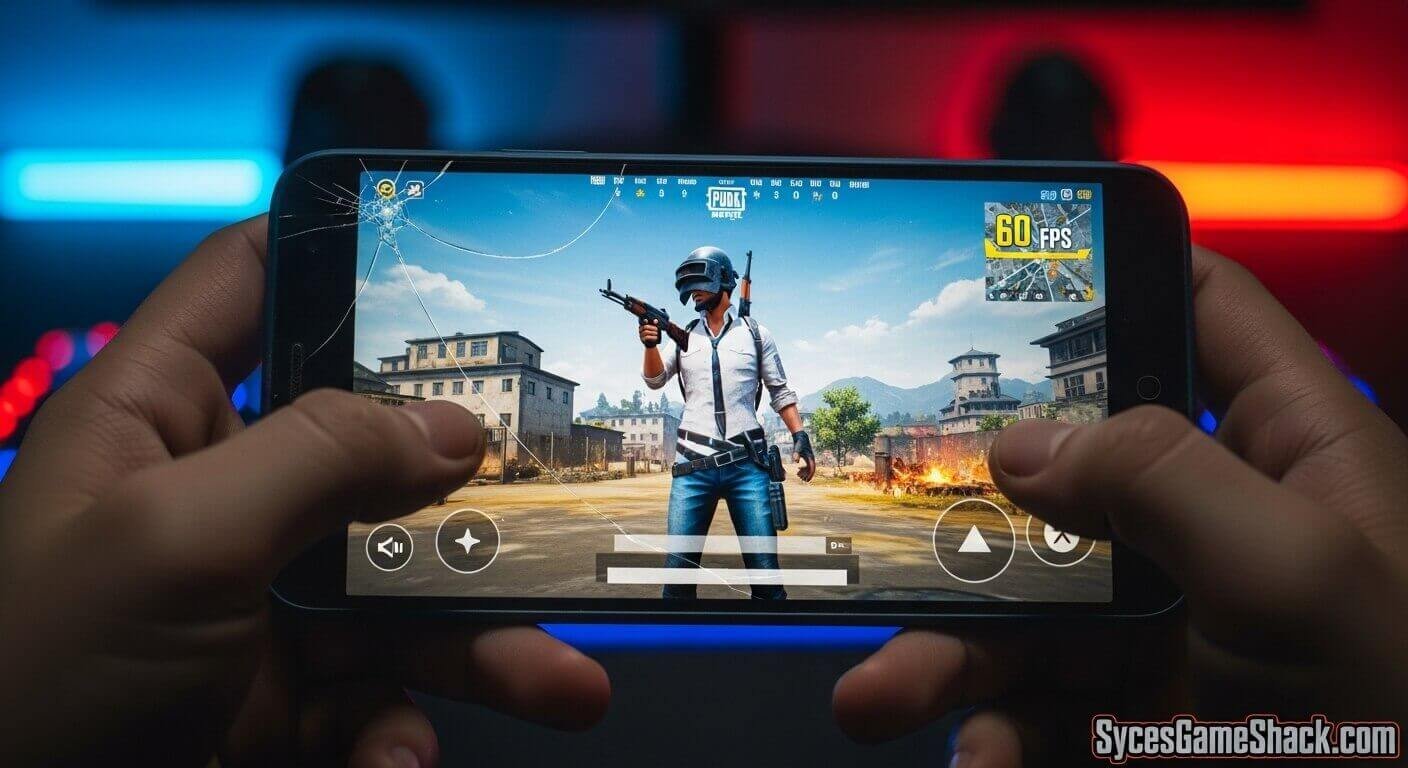
If your device has only 2GB of RAM and uses a Snapdragon 400-series or equivalent processor, seriously consider PUBG Mobile Lite instead. Lite was specifically designed for entry-level devices, features a smaller map with 60 players, and runs on as little as 1GB of RAM with dramatically lower hardware requirements.
PUBG Mobile Lite matches run on separate servers from the main game, and Lite has its own player base. For devices at the very bottom of the performance range, Lite will provide a significantly better gaming experience than trying to force the full game to run on inadequate hardware.
Final Words
The right settings turn a budget phone into a competitive PUBG Mobile Best Settings for Low-End Device. Apply every optimization in this guide, starting with Smooth graphics, disabling Shadows and Anti-Aliasing, clearing background apps, and enabling Game Mode.
Test your settings across complete matches, including high-player-count early game and late-circle firefights, before deciding on your final configuration. Small, consistent optimizations compound into a significantly smoother and more competitive gaming experience on any low-end device.
FAQs
1: What is the best graphics setting for PUBG Mobile on a 2GB RAM phone?
Set Graphics to Smooth, Frame Rate to High (40 FPS), and disable Anti-Aliasing, Shadows, and Bloom completely. This combination produces the most stable performance on 2GB RAM devices.
2: Does lowering graphics settings affect gameplay quality?
Not in a meaningful way. The competitive gameplay, enemy visibility, hit registration, and movement are identical across all graphics settings. Lower graphics actually improve enemy visibility by removing shadows that can conceal opponents.
3: Why does my PUBG Mobile slow down after 15-20 minutes?
This is thermal throttling. Your phone gets hot and slows the CPU to prevent damage. Play in a cooler environment, remove your phone case during gaming sessions, and enable your phone’s Game Mode to improve heat management.
4: Can I play PUBG Mobile on a 1GB RAM?
The full PUBG Mobile requires a minimum of 2GB RAM. For 1GB RAM devices, PUBG Mobile Lite is the appropriate option.
5: Does closing background apps actually improve PUBG Mobile performance?
Yes significantly. Background apps consume RAM that PUBG Mobile needs for stable performance. Closing them before each session consistently reduces stuttering and crash frequency.
6: Is using GFX Tool safe in 2026?
Only use legitimate, non-root GFX tools that modify display settings without altering game files. Modified OBB or data files violate PUBG Mobile’s Terms of Service and risk permanent account bans in 2026.
7: What phone is best for PUBG Mobile on a budget?
The POCO X3 NFC, Realme Narzo 50, and Redmi Note 11 series all handle PUBG Mobile at 60 FPS consistently within budget price ranges. Any phone with 4GB RAM and a Snapdragon 680 or MediaTek Helio G96 processor performs reliably.
8: Should I use the gyroscope in PUBG Mobile on a low-end device?
Use the gyroscope only if your device has a reliable gyroscope sensor and stable enough FPS to make it useful. On devices with frequent frame drops, gyroscope input becomes unpredictable and hurts rather than helps your aim.