Google Slides Games for School: Best List 2026
Introduction
Google Slides games for school are the smartest, most creative way to turn any boring classroom lesson into an exciting, interactive experience that every student will love in 2026. Whether you are a teacher looking for ready-to-use game templates or a student who wants to play fun games during a free period, this is the only guide you will ever need.
This complete guide covers every type of Google Slides game available for school free templates, how to play them, how to build your own, the best games for every subject, and everything in between. Every single game on this list works on any school Chromebook, PC, or laptop with zero downloads required.
⚡ Quick Facts Google Slides Games for School 2026
| Platform | Google Slides (Free) |
| Device Needed | Any Chromebook, PC, Mac, Tablet |
| Download Required | NO Works in Browser |
| Cost | 100% FREE |
| Works at School | YES Always Allowed |
| Best For | Students & Teachers All Grades |
| Google Account | Required (School account works) |
📋 Table of Contents
- What Are Google Slides Games for School?
- Why Teachers & Students Love Them
- Top 15 Google Slides Games for School 2026
- Best Games by School Subject
- How to Open & Play Any Google Slides Game
- How to Make Your Own Google Slides Game
- Best Free Templates & Where to Find Them
- How to Play on School Chromebook
- More Free School Games No Download
- FAQs
What Are Google Slides Games for School?
Google Slides games for school are interactive games built entirely inside Google’s free presentation software the same tool students and teachers use every day for class presentations and projects. Instead of just showing slides, these specially designed files let you click, drag, answer questions, and play games directly inside the presentation.
Because Google Slides runs completely inside the Chrome browser, these games work on every single school Chromebook, laptop, desktop, and tablet with zero installation and zero downloads. Your school Google account gives you instant access to every single game on this list.
✅ Why Google Slides Games Are Different
Unlike regular browser games that school networks often block, Google Slides games are hosted on Google’s own servers the same servers your school uses for Google Classroom, Google Drive, and Gmail. This means they are never blocked by school filters because your school already trusts Google’s platform completely.
Teachers use these games for review sessions, class warm-ups, end-of-lesson activities, and reward time. Students use them for fun during free periods, study sessions, and group activities. Both can access and enjoy them from any school device in 2026.
Why Teachers and Students Love Google Slides Games
Google Slides games have exploded in popularity in schools across the USA and worldwide for very specific reasons. Here is exactly why millions of teachers and students choose them over any other type of school activity.
They Are 100% Free
Every Google Slides game template listed in this guide is completely free to use, copy, and play. No school budget is required, no subscriptions, and no in-app purchases just a free Google account that every student already has.
They Work on Every School Device
Google Slides runs identically on Chromebooks, Windows laptops, MacBooks, iPads, and Android tablets. A game made on one device plays perfectly on any other device with no compatibility issues at all.
They Are Never Blocked by Schools
Because Google Slides is part of Google Workspace for Education the official suite used by most schools it is never blocked by school network filters. Students can access games in Google Slides even on the most restricted school networks.
Teachers Can Customize Every Game
Every Google Slides game template is fully editable. Teachers can change the questions, add their own content, modify the design, and turn any game into a perfect fit for whatever subject or lesson they are teaching that week.
Students Can Play Alone or in Groups
Some Google Slides games are designed for individual students to play on their own device. Others are designed for the whole class to play together on a smartboard. The same game file works for both setups without any changes.
Top 15 Google Slides Games for School 2026 Complete List
These are the most popular, most played, and most effective Google Slides games used in schools across the world in 2026. All of them are free, all work on Chromebooks, and all can be customized by teachers.
🏆 1. Jeopardy Google Slides Game
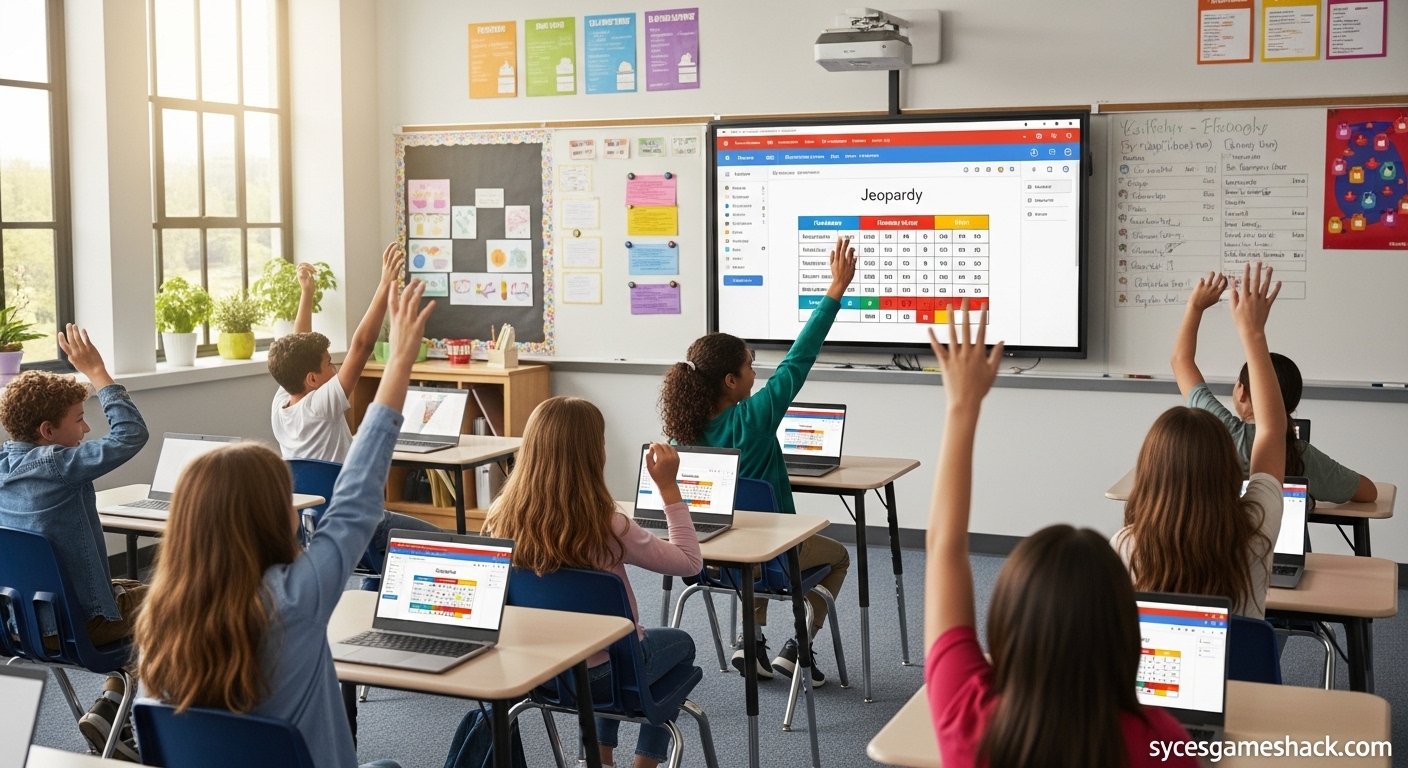
The most popular Google Slides game in every school in America. Teachers set up a Jeopardy board with their own questions and answers for any subject math, science, history, English, or anything else.
Students compete in teams by selecting questions from different categories and point values. The team with the most points at the end wins. Works perfectly on a class smartboard or individual student Chromebooks.
🎮 2. Who Wants to Be a Millionaire Google Slides
Built entirely in Google Slides using clickable links between slides, this game puts students in the hot seat answering increasingly difficult multiple-choice questions with four options each.
Lifelines like 50/50, ask the class, and phone a friend can be incorporated. Teachers customize the questions for any subject or grade level in minutes using the editable template.
🎯 3. Family Feud Google Slides Version
One of the most exciting class games ever two teams compete to guess the most popular answers to survey-style questions. The classic Family Feud format translates perfectly into a Google Slides game with X marks for wrong answers and a scoreboard.
Teachers love this for review sessions because it encourages students to think about what other people know, not just what they themselves know building a different kind of critical thinking skill.
🎲 4. Wheel of Fortune Google Slides
Students spin a digital wheel and guess hidden words or phrases letter by letter, just like the classic TV game show. Built using Google Slides animations and clickable elements, this game is perfect for vocabulary review in any subject.
The vocabulary version is especially popular in English and foreign language classes because it makes learning new words feel like entertainment instead of a chore.
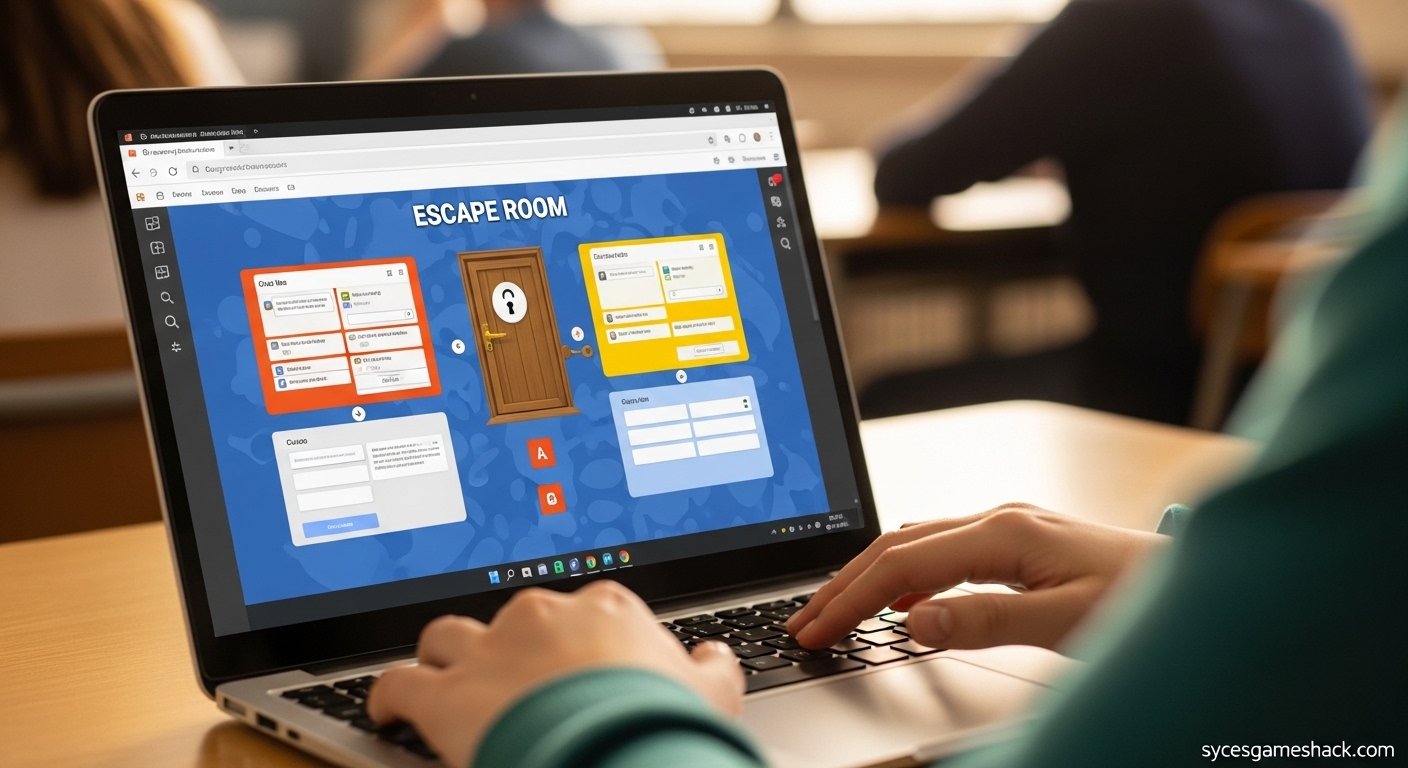
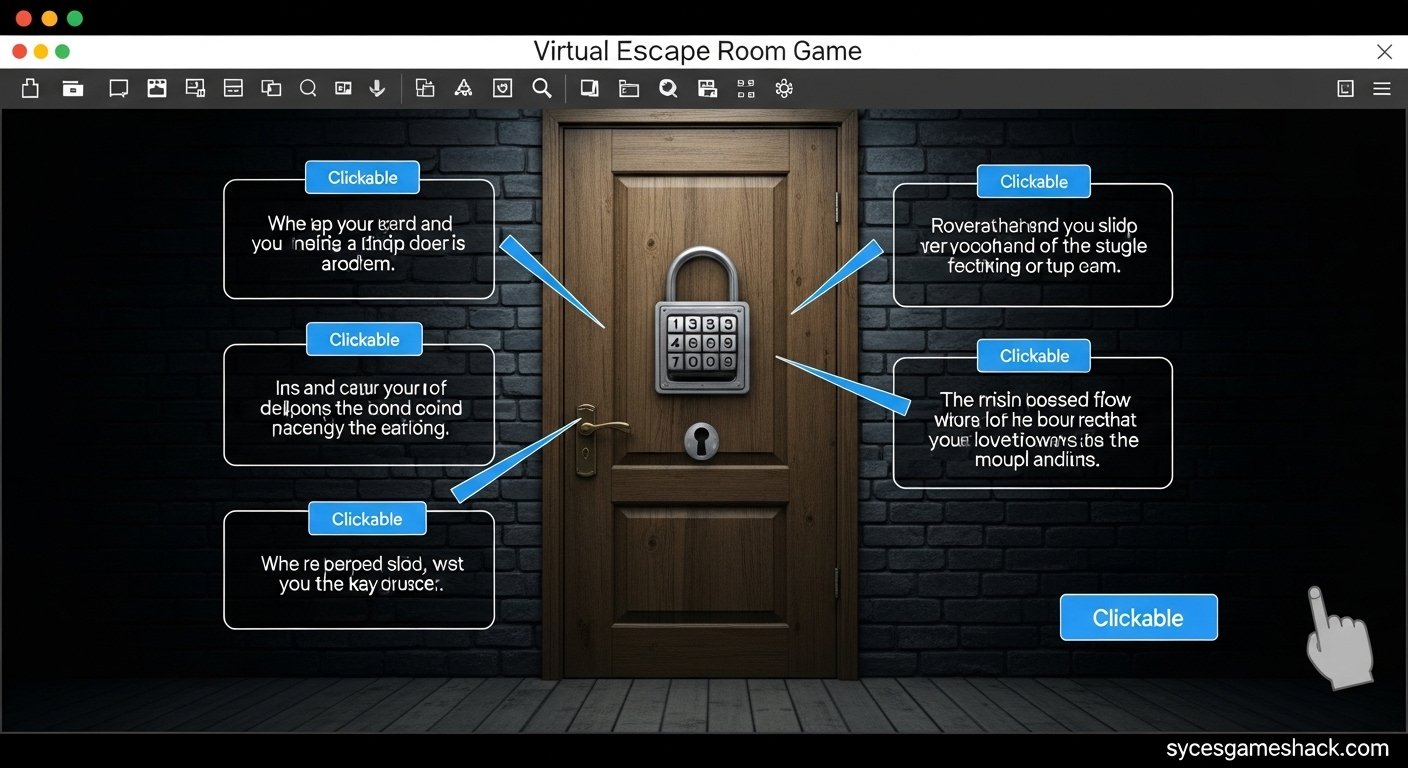
🏠 5. Escape Room Google Slides
The most immersive and creative Google Slides game format. Students are “locked” in a virtual room and must solve a series of puzzles, riddles, and clues by clicking through the slides to find the correct combination that sets them free.
Escape room Google Slides games have become wildly popular for end-of-unit reviews because they make learning feel like an adventure. Students can work individually or in small groups on their own devices.
🎪 6. Kahoot-Style Quiz Google Slides
While Kahoot is a separate platform, teachers can recreate the fast-paced quiz experience entirely inside Google Slides using clickable multiple choice answers that link to correct or incorrect response slides.
The advantage over actual Kahoot is that this version works on the most restricted school networks because it stays entirely within Google’s platform with no external connections needed.
🃏 7. Memory Match Google Slides
Students click on tiles in a grid to reveal hidden words, images, or definitions and try to match pairs exactly like the classic memory card game. Google Slides handles this beautifully using the drag-and-drop feature and hidden elements.
This game is incredibly effective for vocabulary, foreign language terms, math facts, and science concept matching. It works for all ages from elementary through high school.
🎯 8. Tic Tac Toe Review Game Google Slides
Two teams compete in a giant tic tac toe board where every square contains a review question from the lesson. To earn a square, a team must answer the question in that box correctly.
This format is perfect for smaller classes and review sessions because every question matters strategically students must think about both the answer AND the best square to target on the board.
🎲 9. Spin the Wheel Google Slides
A clickable animated wheel in Google Slides that spins and lands on random categories, questions, or student names. Teachers use this for cold-calling, selecting activities, choosing teams, or picking review topics.
The wheel can be customized with any text, colors, and number of sections. It is one of the simplest and most versatile Google Slides game tools a teacher can have.
🏆 10. Trivia Challenge Google Slides
A straightforward trivia game format where students answer questions across multiple rounds and categories. Teachers can build subject-specific trivia (science trivia, history trivia, math trivia) or general knowledge trivia for free period fun.
The trivia format works for any grade level and any class size, making it one of the most universally used Google Slides games in schools worldwide.
🎮 11. Would You Rather Google Slides
Students vote on fun “Would You Rather” questions by clicking buttons or using drag-and-drop markers on a Google Slides poll. This game is perfect for class warm-ups, icebreakers at the start of the year, and free period entertainment.
Teachers love it because it sparks genuine conversation and debate among students, creating a positive classroom atmosphere without any subject-specific preparation needed.
🎯 12. Bingo Google Slides
Digital bingo cards in Google Slides where students mark off squares as the teacher calls out answers, vocabulary words, numbers, or definitions. The first student to complete a row yells Bingo and wins.
Bingo is one of the most versatile school games because it works for absolutely any subject math number bingo, spelling bingo, science term bingo, or even date and event history bingo.
🎪 13. Quiz Show Google Slides
A custom quiz show format where students compete through multiple rounds of increasingly difficult questions across different subject categories. Complete with a scoreboard slide that gets updated after every round.
The multi-round format keeps students engaged for longer class periods and allows teachers to cover more review material than single-game formats allow.
🃏 14. Crossword Puzzle Google Slides
An interactive crossword puzzle built in Google Slides where students type answers directly into text boxes on the slides. Perfect for vocabulary review, spelling practice, and subject-specific terminology in any class.
Teachers can create a crossword once and reuse it every year. Students complete them individually on their Chromebooks, making this one of the most effective quiet individual review activities available.
🎲 15. Word Search Google Slides
A digital word search where students use the highlighter or drawing tool in Google Slides to circle hidden words inside a grid of letters. Works perfectly for vocabulary in any subject at any grade level.
Unlike paper word searches, the Google Slides version can be shared instantly with every student through Google Classroom with a single click from the teacher’s account.
Best Google Slides Games by School Subject 2026
Different subjects need different types of games. Here is the best Google Slides game format for every major school subject taught in USA schools in 2026.
| School Subject | Best Game Format | Why It Works | Grade Level |
|---|---|---|---|
| Math | Jeopardy / Bingo | Fast-paced number review, times tables, equations | All grades |
| English / ELA | Word Search / Crossword | Vocabulary building, spelling, grammar review | K–12 |
| Science | Escape Room / Trivia | Complex concepts become puzzles students want to solve | Grades 4–12 |
| History / Social Studies | Jeopardy / Who Wants to Be a Millionaire | Dates, events, and people become quiz show content | Grades 3–12 |
| Foreign Language | Memory Match / Wheel of Fortune | Word-translation matching, letter-by-letter spelling | All grades |
| Geography | Trivia / Family Feud | Country capitals, flags, and map locations as game content | Grades 4–12 |
| Free Period / Fun | Would You Rather / Spin the Wheel | No subject knowledge needed pure entertainment | All grades |
How to Open and Play Any Google Slides Game at School
Playing a Google Slides game at school is extremely simple. Here is the complete step-by-step process that works for both students and teachers on any school device.
- Sign into your Google account. Use your school-provided Google account (usually ending in @school.edu or similar) to sign in at google.com.
- Get the game link. Your teacher will share the game link through Google Classroom, email, or by writing it on the board. Some templates are available free online copy the link exactly.
- Open Google Slides. Go to slides.google.com or click the link directly. The game file will open automatically.
- Make a copy first. Go to File → Make a Copy → Entire Presentation. This creates your own editable version in your Google Drive so you can drag, click, and interact with the game.
- Enter Presentation Mode. Press Ctrl + Shift + F5 or click the Present button in the top right corner. The game now fills your entire screen.
- Use the mouse to click. Most interactive elements in Google Slides games respond to mouse clicks. Click buttons, drag pieces, and interact with the game exactly as you would any other interactive website.
- Use keyboard shortcuts. Press the right arrow key to advance slides, the left arrow key to go back, and Escape to exit presentation mode at any time.
💡 Important Tip: Always Make a Copy
Never play directly on a teacher’s shared template. Always make your own copy first using File → Make a Copy. Playing on the original template means your changes affect everyone who shares that file. Your own copy stays in your Google Drive and is yours to keep and play anytime.
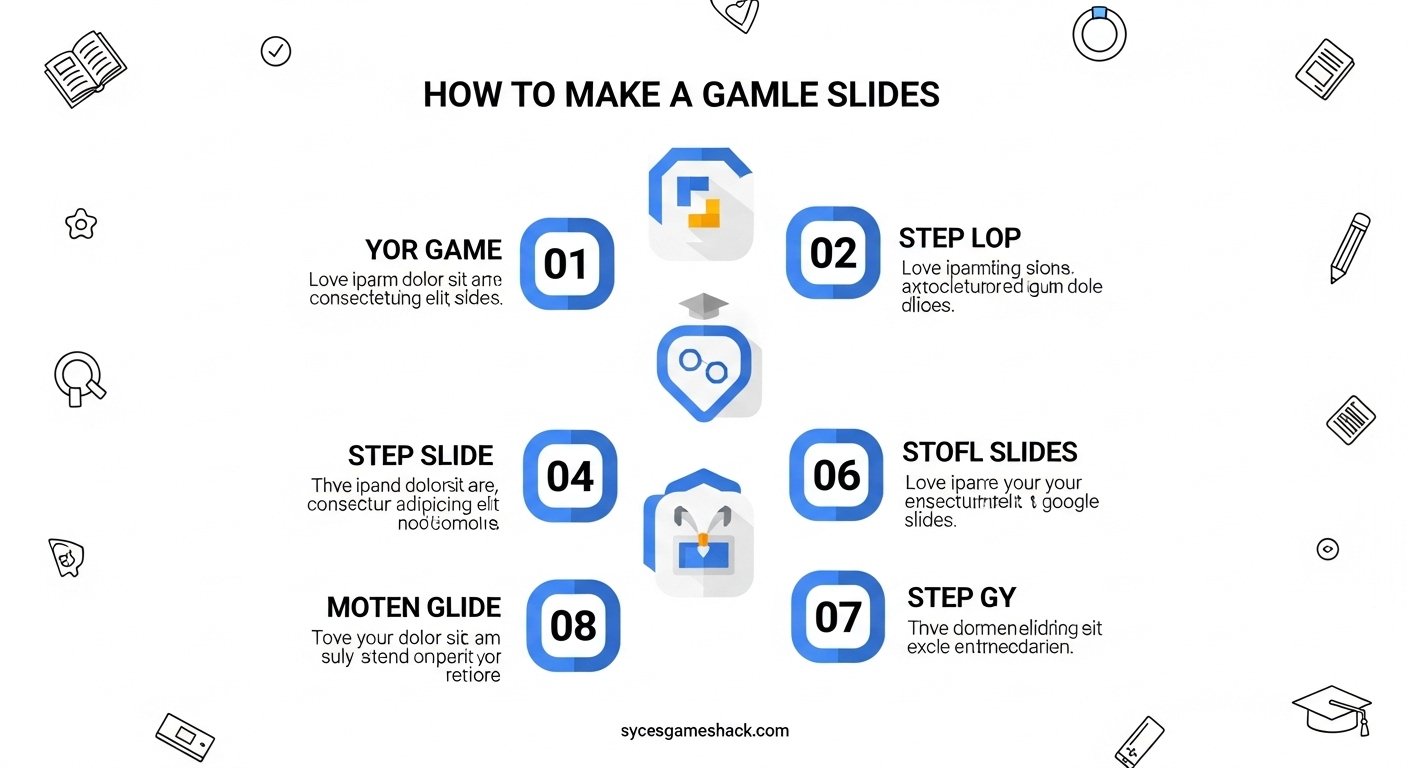
How to Make Your Own Google Slides Game Step by Step
Creating your own Google Slides game from scratch is easier than most students and teachers think. Here is a complete beginner guide to making your first Google Slides game in 2026.
Step 1: Choose Your Game Type
Decide what kind of game you want to make before you open Google Slides. Jeopardy and trivia games are easiest to build for beginners. Escape rooms and memory games are more advanced and take more time to set up correctly.
Step 2: Open Google Slides and Set Up the Slide Size
Go to slides.google.com and create a new blank presentation. Go to File → Page Setup and change the dimensions to 16:9 widescreen (1920×1080). This gives you the most screen space to work with for game layouts.
Step 3: Design Your Game Board or Title Slide
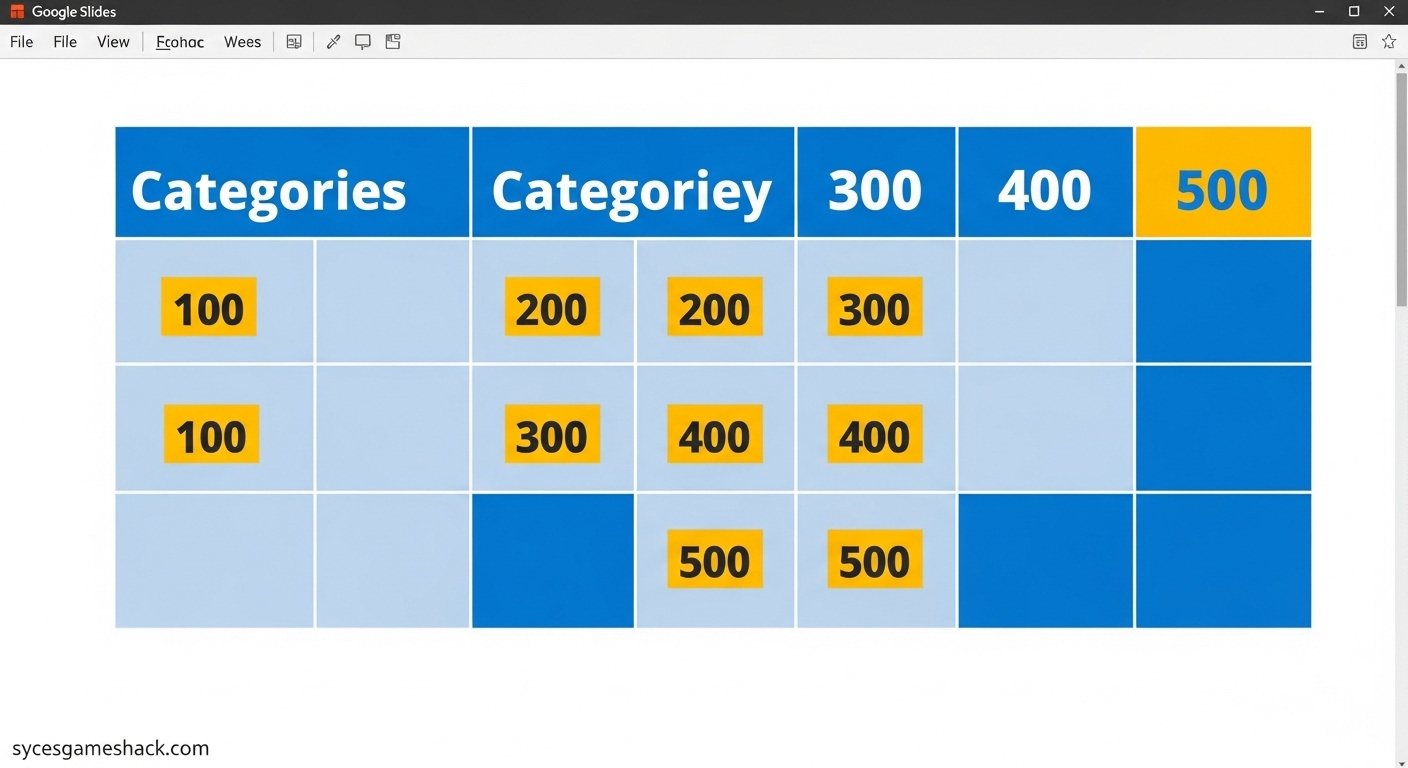
Create a visually attractive title slide with your game name. For Jeopardy, create a grid with categories across the top and point values in each cell. Use the table tool in Insert → Table to build clean, structured game boards quickly.
Step 4: Add Hyperlinks Between Slides
This is the key technical skill for interactive Google Slides games. Select any text or shape, right-click, choose Link, and then select the slide number you want it to jump to. This is how question slides link to answer slides and how answer slides link back to the game board.
Step 5: Add Your Questions and Answers
Create one slide for each question and one slide for each answer. Use large, readable fonts (minimum 36pt) so the game is visible on a classroom smartboard from the back of the room. Add color coding to make correct answers obvious.
Step 6: Add a Scoreboard Slide
Create a final slide as a scoreboard where the teacher or game host can manually update team scores during the game. A simple table with team names and point totals is all you need Google Slides lets presenters type directly on slides during presentation mode.
Step 7: Test Everything Before Sharing
Go into presentation mode and click through every single hyperlink to make sure they all go to the correct slides. One broken link in a Jeopardy game will break the flow during class. Testing takes 10 minutes but saves major embarrassment during the actual game.
Step 8: Share Through Google Classroom
When your game is ready, go to Share → change sharing to “Anyone with the link can view” then share through Google Classroom, email, or direct link. Students make their own copy to play individually, or the teacher projects it for the whole class.
Best Places to Find Free Google Slides Game Templates 2026
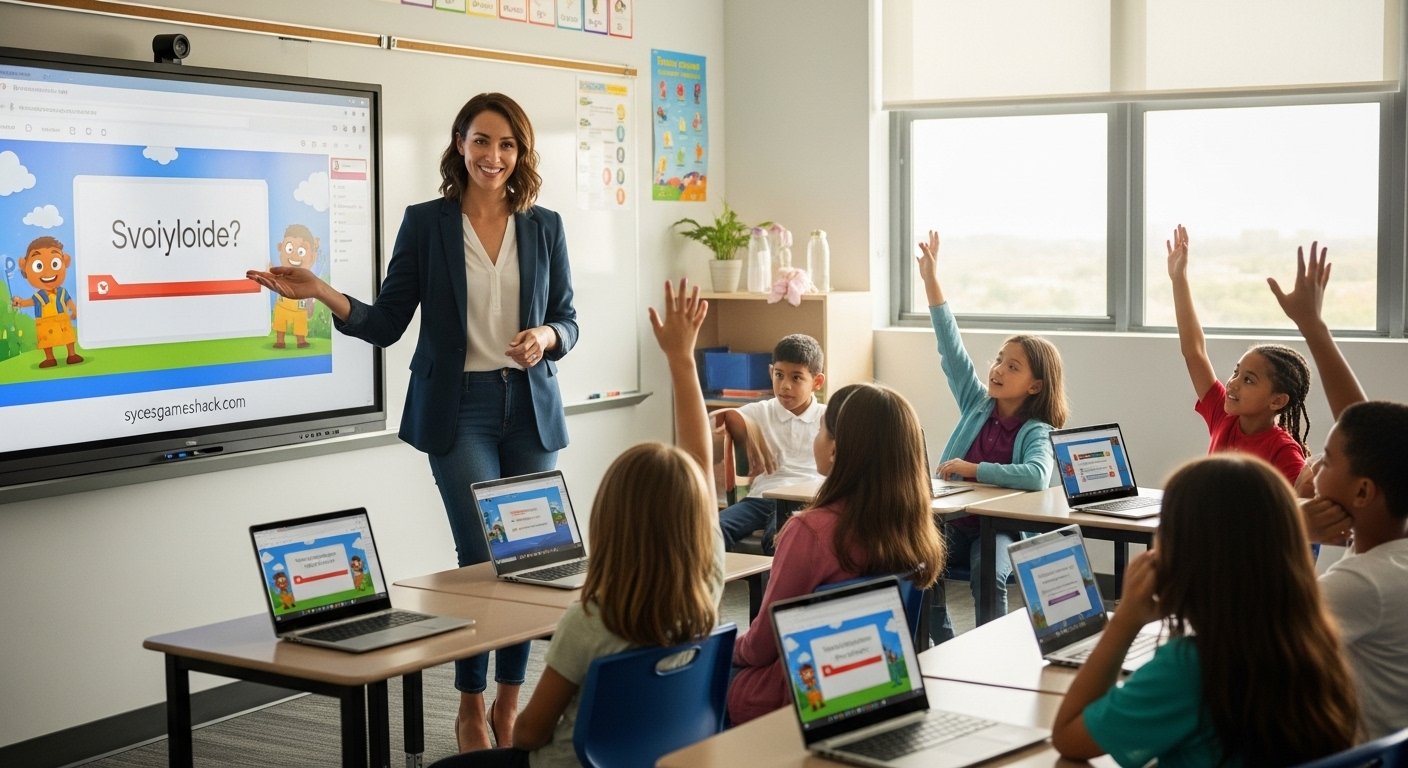
You do not need to build a game from scratch every time. These are the best websites where teachers and students can find completely free, ready-to-use Google Slides game templates in 2026.
| Website | What They Offer | Cost | Best For |
|---|---|---|---|
| Slides Carnival | Game-themed presentation templates | Free | Teachers building from scratch |
| Teachers Pay Teachers | Subject-specific game templates | Many free | Curriculum-aligned games |
| Ditch That Textbook | Jeopardy and interactive activity templates | Free | Jeopardy and quiz shows |
| Slidesgo | Beautiful game-themed slide designs | 3 free/month | Visually impressive games |
| Google Workspace Marketplace | Add-ons that create games inside Slides | Many free | Family Feud, quiz generators |
🎮 Want More Free Games?
While Google Slides games are great for classroom learning, if you want even more free games to play at school including unblocked browser games that work on every Chromebook visit Syces Game Shack. We have 160+ free games that are always unblocked and always playable at school with zero downloads.
How to Play Google Slides Games on School Chromebook Full Guide
Chromebooks are the most common student device in the USA schools and they are perfectly optimized for Google Slides games because Chrome OS is built specifically for Google’s apps. Here is how to get the best experience on your school Chromebook.
Step 1 Sign In with Your School Account: Press the Power button on your Chromebook, sign in with your school Google account, and open the Chrome browser. All Google Slides games automatically sync with your school account.
Step 2: Access Google Slides: Type slides.google.com into the Chrome address bar. You can also access it through the Google Apps grid (the nine-dot icon) in the top right corner of any Google page.
Step 3 Open the Game File: Open the game link your teacher shared, or search your Google Drive for a game file you previously saved. Google Slides games open instantly in the browser with no loading time.
Step 4 Make Your Copy: Press Ctrl + D or go to File → Make a Copy to create your personal editable version in your Google Drive. This is essential for interactive drag-and-drop game elements to work correctly.
Step 5: Enter Presentation Mode: Press Ctrl + Shift + F5 to enter fullscreen presentation mode. On a Chromebook, this is the fastest keyboard shortcut to get the game into full-screen immersive mode.
Step 6: Use the Touchpad for Clicking: Chromebook touchpads support all the click and drag interactions that Google Slides games require. Tap with one finger to click and press with two fingers for right-click. For drag-and-drop games, press and hold on an object then slide to move it.
More Free School Games Play Instantly on Syces Game Shack
Google Slides games are amazing for classroom learning, but sometimes you just want to play a fast, fun game during your break. These games on Syces Game Shack are always unblocked, always free, and work on every school Chromebook instantly.
🎮 Slope Unblocked
The most popular school browser game. Guide a neon ball down an endless 3D track. Simple controls, impossible to master. No download, always unblocked.
🏈 Retro Bowl Unblocked
The most popular American football browser game. Manage your team and play matches. USA students absolutely love this one. Free on Syces Game Shack.
🎯 1v1 LOL Unblocked
Competitive multiplayer building and shooting. Challenge your classmates to 1v1 battles right in the browser. Always available, zero blocks.
🍪 Cookie Clicker Unblocked
The most famous idle game ever. Click cookies, build upgrades, and grow your cookie empire. Perfect for a quiet study break that never gets boring.
🏍️ Moto X3M Unblocked
Crazy motorcycle obstacle courses that get wilder every level. Fast, satisfying, and completely free on Syces Game Shack with no school network blocks.
🚗 Drift Boss Unblocked
One-button drifting on an endless twisting track. Incredibly simple to learn, genuinely difficult to master. Great for two minutes between classes.
Find all of these games and 160+ more at sycesgameshack.com always free, always unblocked, always working on school Chromebooks in 2026.
FAQs
Are Google Slides games free?
Yes. Google Slides itself is completely free for anyone with a Google account, and the vast majority of Google Slides game templates available online are also free to copy and use. Some premium templates on Teachers Pay Teachers have small costs, but thousands of high-quality options are available at no charge.
Do Google Slides games work on school Chromebooks?
Yes, perfectly. Google Slides is designed specifically for Chrome OS and runs flawlessly on every school Chromebook. Because Google Slides is a core part of Google Workspace for Education, it is always available and always fully functional on school-managed Chromebook devices.
Can teachers block Google Slides games at school?
Individual teachers can restrict access to Google Drive and Google Slides through their Google Workspace admin settings. However, since Google Slides is an educational tool used for legitimate class activities, very few schools block it. Games played in Google Slides generally pass through school filters without any issues.
What is the best Google Slides game for the whole class?
Jeopardy is consistently rated the best Google Slides game for whole-class participation. It works on a classroom smartboard, keeps all students engaged through team competition, and can be customized for any subject in under 15 minutes. Family Feud is a close second for classes that enjoy collaborative team activities.
Can students make their own Google Slides games?
Absolutely. Making a Google Slides game is a fantastic student project that develops creativity, technical skills, and subject mastery simultaneously. Students who create a trivia or escape room game about a topic they studied demonstrate a much deeper understanding of that topic than students who just take a test on it.
How do I make a Jeopardy game in Google Slides?
Create a new Google Slides presentation, add a table with your categories as column headers and point values as rows. Create individual question slides for each cell. Use Insert → Link to connect each point value cell to its corresponding question slide, and link each question slide back to the main board. Add a final scoreboard slide and your Jeopardy game is complete.
Do I need internet to play Google Slides games at school?
You need internet to initially load a Google Slides game file. However, Google Slides supports offline mode if you enable it through Google Drive settings, your game file will be saved locally on your Chromebook and will continue to work even if the school WiFi goes down during your session.
What is the easiest Google Slides game to make for beginners?
A simple trivia quiz is the easiest Google Slides game to make as a beginner. Create one slide per question with the question text and four answer options. Create a second slide that shows the correct answer. Link the question slide to the answer slide, and link the answer slide to the next question. Repeat for 10 questions and you have a complete game in about 20 minutes.
Can Google Slides games be played on a phone?
Yes. The Google Slides app is available for both iPhone and Android phones. Students can open and play Google Slides games on their phones using the app. However, drag-and-drop games work much better on a larger screen like a Chromebook, tablet, or computer because the touch targets are easier to hit accurately.
What is the most popular Google Slides game in USA schools?
Jeopardy is the most widely used Google Slides game in USA schools by a significant margin. It has been a classroom staple since PowerPoint made it possible, and Google Slides has made it even more accessible because every student with a school Google account can access and play it for free without any additional software.
How many students can play a Google Slides game at once?
There is no technical limit on how many students can view a shared Google Slides game simultaneously. For individual play on personal Chromebooks, every student in the class can have their own copy open at the same time. For team-based games projected on a smartboard, the game supports as many teams as the teacher wants to organize.
Final Thoughts Google Slides Games for School Are the Future of Fun Learning
Google Slides games for school represent the perfect intersection of technology, creativity, and education. They are free, universally accessible, never blocked by school networks, and work on every single device that students use in 2026. Whether you are a teacher building your first Jeopardy game or a student looking for something fun to do during a free period, Google Slides games deliver every single time.
Use this guide to find the right game template, play it on your school Chromebook, build your own custom game, or explore all 15 game types listed above. And when you want even more free games to play at school with zero downloads and zero blocks, visit Syces Game Shack for 160+ instantly playable school-friendly games.
🎮 Want More Free School Games?
Visit Syces Game Shack for 160+ unblocked games all free, all working at school, all playable on Chromebook instantly.